מדריך OrenChat OrenChat step-by-step guide · v1.43.1
לאתר · Back to the site

בסיסי · Basic

מה זה OrenChat?What is OrenChat?

עברית

OrenChat היא אפליקציית אנדרואיד לשיחות בחדרים: נכנסים לחדר, שומעים ומדברים עם כל מי שבפנים, פותחים מצלמה כשיש היתר, וכותבים בצ׳אט באותו מסך.

  • בעברית ובעוד 22 שפות — ביניהן אנגלית, ערבית, רוסית, ספרדית, צרפתית וגרמנית — עם דגש על נגישות.
  • הפיילוט חינמי, בלי פרסומות. ההרשמה מגיל 18 ומעלה.
  • המדריך מתאר את הגרסה שפורסמה: 1.43.1.

עוברים בין השקופיות בכפתורים למטה, בהחלקה או בחיצי המקלדת. הסדר: מהקל אל המתקדם.

English

OrenChat is an Android app for talking in rooms: you enter a room, hear and talk with everyone inside, turn on your camera when the room has a video permit, and write in the chat on the same screen.

  • In Hebrew and 22 more languages — among them English, Arabic, Russian, Spanish, French and German — built with accessibility in mind.
  • The pilot is free, with no ads. You must be 18 or older to register.
  • This guide describes the published version, 1.43.1.

Move between slides with the buttons below, by swiping, or with the keyboard arrows. The order goes from easy to advanced.

סמל האפליקציה OrenChat · The OrenChat app icon

בסיסי · Basic

הורדת האפליקציהDownloading the app

עברית
  • האפליקציה עדיין לא בחנות Google Play. מורידים אותה רק מאתר הבית של OrenChat, כקובץ APK לאנדרואיד 7.0 ומעלה.
  • באתר תמיד זמינה להורדה הגרסה האחרונה.
  • כבר מותקנת אצלכם גרסה קודמת? מתקינים מעליה, בלי להסיר אותה — והחשבון נשמר.
  • גרסת מחשב עדיין בפיתוח ואינה זמינה.
English
  • The app is not in the Google Play store yet. You download it only from the OrenChat home site, as an APK file for Android 7.0 or newer.
  • The site always offers the latest version.
  • Already have an older version? Install over it without uninstalling — your account is kept.
  • A computer version is still in development and is not available.

בסיסי · Basic

התקנה בטוחהInstalling safely

עברית
  1. הקישו על הקובץ שהורדתם. אם הטלפון מבקש — הפעילו אפשר ממקור זה וחזרו להתקנה.
  2. בסמסונג: לפני ההתקנה כבו את החוסם האוטומטי, ואחרי ההתקנה הדליקו אותו בחזרה. הדרך: הגדרות ← אבטחה ופרטיות ← חוסם אוטומטי.
  3. בשיאומי, פוקו ורדמי: המתינו לספירה לאחור, סמנו אני מודע לסיכונים והקישו אישור.
⚠️ אם מופיעה הודעה של Play Protect — ״האפליקציה נחסמה״ או ״זוהה קובץ מזיק״ — עצרו את ההתקנה ופנו לאורן. השאירו את Play Protect פעיל, ואל תבחרו ״להתקין בכל זאת״.
English
  1. Tap the downloaded file. If the phone asks, turn on Allow from this source and return to the installer.
  2. Samsung: before installing, turn off Auto Blocker, and turn it back on afterwards. Where: Settings → Security and privacy → Auto Blocker.
  3. Xiaomi, POCO and Redmi: wait for the countdown, tick I am aware of the risks and tap OK.
⚠️ If Play Protect shows “App blocked” or “Harmful app detected”, stop the installation and contact Oren. Keep Play Protect on, and never choose “Install anyway”.

בסיסי · Basic

ההרשאות שהאפליקציה מבקשתThe permissions the app asks for

עברית
  • מיקרופון — בלעדיו אי אפשר לדבר בחדר. זו ההרשאה היחידה שבאמת חובה.
  • התראות — להתראה הקבועה של השיחה (״מחובר לחדר…״), שבזכותה שומעים אתכם גם כשהמסך כבוי, ולהודעות מהאפליקציה. מומלץ לאשר.
  • מצלמה — רק לווידאו בחדר שיש בו היתר, או לצילום תמונה לצ׳אט — בחדר או בפרטי. אפשר לסרב ולהשתמש בקול בלבד.
  • הצגה מעל אפליקציות אחרות — רק ללחצן הדיבור הצף: כשמפעילים אותו ב״מכשיר קשר״, או בפעם הראשונה שמקישים ״הוצאת מיקרופון״. הלחצן רק פותח וסוגר את המיקרופון, ואינו רואה דבר על המסך.
  • אנשי קשר — רק אם תקישו ״מצא חברים מאנשי הקשר״, ובאותו רגע בלבד. נקראים רק מספרי הטלפון, הם נשלחים מוצפנים להשוואה רגעית בשרת ולא נשמרים, ואף מספר לא מוצג לאיש. אפשר לסרב.

האפליקציה לא מבקשת גישה להודעות או לתמונות; למיקום היא פונה רק בחשבון שסומן לבדיקת מיקום, אחרי מסך הסבר ורק כשהאפליקציה פתוחה. את אנשי הקשר היא קוראת רק אם ביקשתם בעצמכם למצוא חברים. תמונה משתפים דרך בוחר התמונות של המערכת, ונתוני המיקום מוסרים ממנה לפני השליחה.

English
  • Microphone — without it you cannot talk in a room. It is the only permission that is truly required.
  • Notifications — for the call’s ongoing notification (“Connected to room…”), which keeps your voice heard when the screen is off, and for messages from the app. Recommended.
  • Camera — only for video in a room with a permit, or to take a photo for the chat — in a room or in private. You can refuse and use voice only.
  • Display over other apps — only for the floating talk button: when you turn it on in “Walkie-talkie”, or the first time you tap “Pull out mic”. The button only opens and closes the microphone, and sees nothing on the screen.
  • Contacts — only if you tap “Find friends from your contacts”, and at that moment only. Only phone numbers are read, they are sent encrypted for a momentary comparison on the server and are not stored, and no number is shown to anyone. You can refuse.

The app does not ask for access to your messages or photos; it asks for location only on an account marked for a location check, after an explanation screen and only while the app is open. It reads your contacts only if you yourself asked to find friends. Images are shared through the system photo picker, and the location data is stripped from them before sending.

בסיסי · Basic

פתיחה ראשונה: שפה וכניסהFirst launch: language and sign-in

עברית
  1. בחרו את השפה שלכם מתוך 23 — כל שפה מופיעה בשם שלה — וגודל תצוגה שנוח לכם. אפשר לשנות את שניהם בכל רגע.
  2. הקישו כניסה עם חשבון Google, או הירשמו עם כתובת מייל וסיסמה (10 תווים לפחות, עם אות וספרה).
  3. פתחו את המייל שנשלח אליכם והקישו על קישור האימות. לא מופיע? בדקו בתיקיית הספאם.
English
  1. Choose your language out of 23 — each one is shown under its own name — and a comfortable display size. You can change both at any time.
  2. Tap sign in with your Google account, or register with an email address and password (at least 10 characters, with a letter and a digit).
  3. Open the email we send you and tap the verification link. Not there? Check your spam folder.

בסיסי · Basic

הרשמה ואישורRegistration and approval

עברית
  • מלאו שם מלא, תאריך לידה ואזור מגורים, קראו את הסכם השירות וסמנו את שתי ההצהרות. ההרשמה מגיל 18.
  • בחרו מהרשימה את הקהילה שאליה תרצו להשתייך, או ״לא החלטתי עדיין״, או בקשה להקים קהילה משלכם. הבחירה נכנסת לתוקף כשאורן מאשר.
  • קיבלתם קוד או קישור הזמנה ממנהל קהילה? פתחו את הקישור בטלפון — במסך ההרשמה יופיע ״קישור הזמנה התקבל ✓״ — או הקלידו את הקוד בשדה ״קוד הזמנה (אם קיבלת)״. כך תשויכו לקהילה שלו אוטומטית כשהחשבון יופעל. ההזמנה חד־פעמית: הקוד והקישור הם אותה הזמנה.
  • השם המלא אינו מוצג למשתתפים. בחדרים מוצג הכינוי שתבחרו.
  • כל הרשמה עוברת אישור של אורן או של בעל תפקיד מוסמך.
  • סיסמה חזקה: 10 תווים לפחות, עם אות וספרה; סיסמאות נפוצות נדחות. בעלי תפקידים נדרשים לסיסמה מחמירה. סיסמה קיימת חלשה? מקבלים תזכורת במשך 30 יום, ואחר כך מתבקשים להחליף אותה בכניסה.
  • אימתתם טלפון ישראלי בקוד SMS? נכנסים מיד. נרשמתם עם Google בלי טלפון? במסך ״ממתין לאישור״ יש כפתור לאימות בקוד SMS.
  • נרשמתם מחו״ל? אחרי אימות המייל נכנסים מיד כחברים זמניים לשבועיים; אימות טלפון עשוי להידרש בהמשך.
English
  • Fill in your full name, date of birth and area, read the terms of service and tick both declarations. You must be 18 or older.
  • Choose from the list the community you would like to belong to, or “I haven’t decided yet”, or a request to set up your own. The choice takes effect when Oren approves.
  • Got an invitation code or link from a community manager? Open the link on your phone — the sign-up screen shows “Invitation link received ✓” — or type the code in the “Invitation code (if you got one)” field. Either way you join his community automatically when your account is activated. The invitation is one-time: the code and the link are the same invitation.
  • Your full name is not shown to other people. Rooms show the nickname you choose.
  • Every registration is approved by Oren or an authorised role holder.
  • A strong password: at least 10 characters, with a letter and a digit; common passwords are rejected. Role holders need a strict password. Existing weak password? You get a reminder for 30 days, then you are asked to change it at sign-in.
  • Verified an Israeli phone with an SMS code? You are in right away. Signed up with Google without a phone? The “awaiting approval” screen has a button to verify by SMS.
  • Registering from abroad? Once your email is verified you join right away as a temporary member for two weeks; phone verification may be required later.

בסיסי · Basic

שבועיים של חברות זמניתTwo weeks of temporary membership

עברית
  • מי שאימת את זהותו במלואה נכנס מיד כחבר זמני לשבועיים.
  • בתוך השבועיים קובעים שיחת היכרות קצרה עם אחד מבעלי התפקידים, והוא מאשר חברות קבועה.
  • עד האישור: משתתפים בחדרים בקול בלבד — בלי מצלמה, בלי צ׳אט ותמונות בחדר, והודעות פרטיות רק למייסד ולבעלי תפקיד — ומופיעים בכינוי בלבד.
  • האפליקציה מראה כמה ימים נותרו ומזכירה 7, 3 ויום אחד לפני הסיום. בלי אישור החשבון חוזר להמתנה — הוא נשמר, ואישור מחזיר אותו מיד.
English
  • Once your identity is fully verified, you join right away as a temporary member for two weeks.
  • Within those two weeks, arrange a short introduction call with one of the role holders, who approves permanent membership.
  • Until then you take part in rooms by voice only — no camera, no room chat or images, private messages only to the founder and role holders — and you appear by nickname only.
  • The app shows how many days are left and reminds you 7, 3 and 1 day before the end. Without approval the account goes back to waiting — it is kept, and approval restores it at once.

בסיסי · Basic

אחרי הכניסה: טביעת אצבע וקישור לאתרAfter signing in: fingerprint and a site shortcut

עברית
  • אחרי הכניסה הראשונה האפליקציה מציעה כניסה בטביעת אצבע לפעמים הבאות. טביעת האצבע נשארת במכשיר בלבד. אפשר להסכים או לדלג.
  • כמה שניות אחר כך היא מציעה להוסיף קישור לאתר OrenChat במסך הבית — שם תמיד הגרסה העדכנית, ההסברים והעזרה. הטלפון ישאל — הקישו הוספה.
  • דילגתם? אפשר להוסיף את הקישור בכל זמן מתפריט החשבון ⋮.
English
  • After your first sign-in, the app offers fingerprint sign-in for next time. Your fingerprint stays on the device only. You can accept or skip.
  • A few seconds later it offers to add an OrenChat site link to your home screen — the place for the latest version, explanations and help. When the phone asks, tap Add.
  • Skipped it? Add the link any time from the account menu ⋮.

בסיסי · Basic

הפרופיל שלכםYour profile

עברית
  • בתפריט ⋮ בחרו הפרופיל שלי.
  • בחרו תמונה, כתבו משפט על עצמכם ושמרו.
  • חברים רואים בפרופיל את התמונה, הכינוי והמשפט. השם המלא לא מוצג.
  • בתקופת החברות הזמנית מופיעים בכינוי בלבד, בלי תמונה ותיאור.
  • בפרופיל: מי צפה בפרופיל שלי — מי פתח את כרטיס הפרופיל המלא שלכם ב-30 הימים האחרונים, עם השעה אצלכם והשעה אצל הצופה; על כל צופה מגיעה התראה, לכל היותר פעם ביום. כשאתם פותחים פרופיל מלא של מישהו אחר — גם הצפייה שלכם מופיעה אצלו, ולפני הפעם הראשונה מוצג הסבר קצר.
English
  • In the ⋮ menu, choose My profile.
  • Pick a photo, write a sentence about yourself and save.
  • Friends see your photo, nickname and sentence. Your full name is not shown.
  • During temporary membership you appear by nickname only, without a photo or description.
  • In your profile: Who viewed my profile — who opened your full profile card in the last 30 days, with the time on your side and on the viewer’s side; each viewer brings a notification, at most once a day. When you open someone else’s full profile, your view shows up for them too, and a short explanation appears before the first time.

בסיסי · Basic

נכנסים לחדרJoining a room

עברית
  • במסך הבית יש רשימת חדרים — חדרי קול ווידאו וחדרי טקסט. בכל כרטיס חדר רואים כמה נוכחים בו עכשיו, עוד לפני שנכנסים; המספר מתעדכן בזמן אמת.
  • נכנסים בהקשה אחת, והשיחה הקולית מתחילה מיד.
  • בראש החדר מופיעים שם החדר ושם בעל החדר.
  • סרגל הנוכחים מראה מי מחובר, מי מדבר ומי מושתק — סימון המיקרופון ליד השם, לא על ריבוע הווידאו. הקשה על שם פותחת את האפשרויות הזמינות עבורו.
  • בראש הרשימה מי שהרים יד, לפי סדר ההרמה, ואחריהם מי שמדבר ובעלי התפקידים. כשיש יותר מ-10 משתתפים, מופיע שדה חיפוש.
  • תגי תפקיד ליד השמות: מייסד בזהב, סופר אדמין בסגול עם מגן, בעל החדר בטורקיז עם כוכב, ממלא מקום בכתום עם חצי כוכב, מפקח עם מגן.
  • יש חדרים ציבוריים, פרטיים (למוזמנים בלבד) וסודיים (לא מופיעים ברשימה).
  • אורן יכול לקבוע שחברי קהילה נכנסים רק לחדרים מסוימים. חדר שאסור לכם להיכנס אליו מופיע נעול, עם מנעול ובלי מספר נוכחים. הקשה עליו מסבירה למה, ולא מכניסה לחדר.
English
  • The home screen shows a list of rooms — voice-and-video rooms and text rooms. Every room card shows how many people are in it right now, before you enter; the number updates in real time.
  • Join with one tap; the voice call starts right away.
  • The top of the room shows the room name and the room owner’s name.
  • The participants bar shows who is connected, who is speaking and who is muted — the microphone mark sits next to the name, not on the video square. Tap a name to see the options available for that person.
  • At the top of the list is whoever raised a hand, in the order the hands went up, then whoever is speaking and the role holders. With more than 10 participants, a search field appears.
  • Role badges next to names: founder in gold, super admin in purple with a shield, room owner in turquoise with a star, deputy in orange with a half-star, moderator with a shield.
  • Rooms can be public, private (invitation only) or secret (not shown in the list).
  • Oren can set community members to enter only certain rooms. A room you may not enter appears locked, with a padlock and no count of people. Tapping it explains why, and does not take you in.
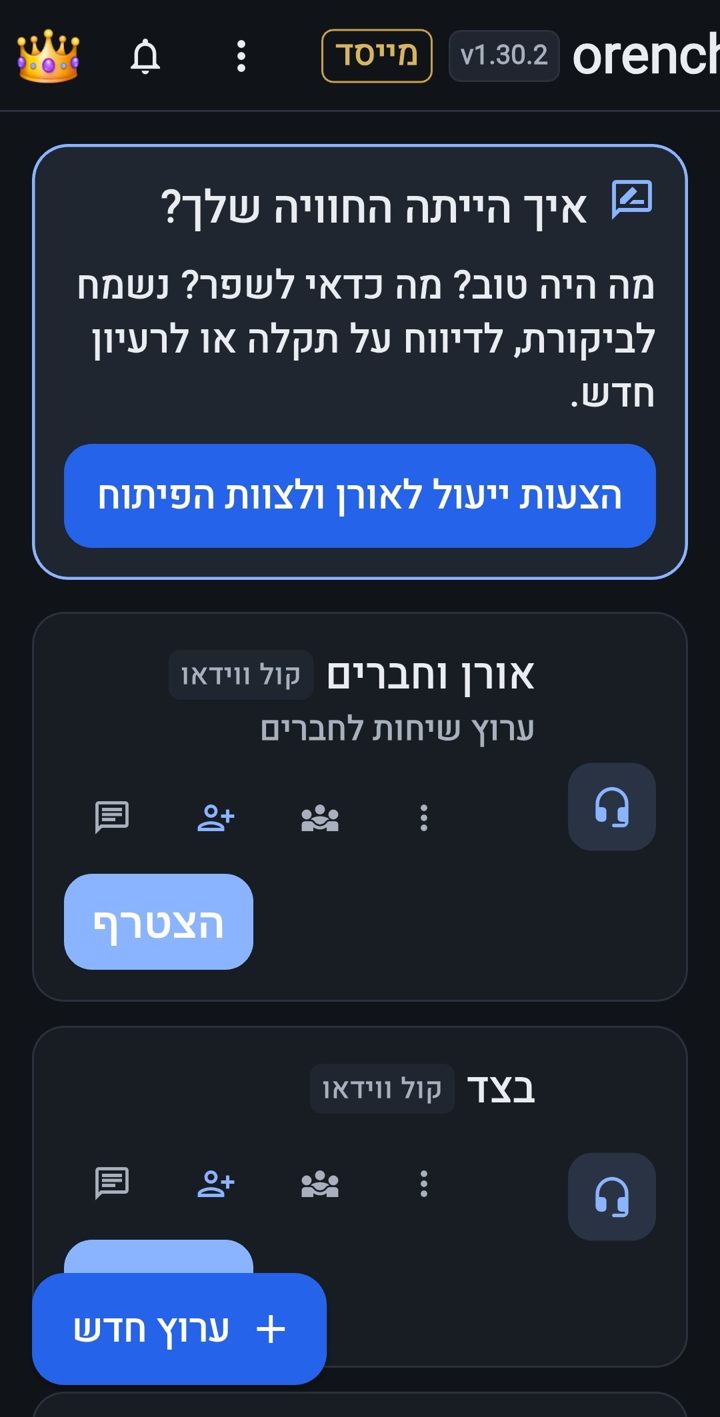
מסך הבית: רשימת החדרים עם כפתור הצטרפות לכל חדר, וכרטיס ״איך הייתה החוויה שלך״ עם כפתור ההצעות · Home screen: the room list with a join button for each room, and the “How was your experience” card with the suggestions button
הצילומים בערכה הכהה — כך אורן אוהב; כל אחד בוחר לו את ערכת הצבעים הנוחה לו (לפי הטלפון, בהירה או כהה, ועוד ניגודיות מוגברת) ב״נגישות ותצוגה״.The screenshots use the dark scheme — that is what Oren likes; everyone picks the scheme that suits them (by phone, light or dark, plus high contrast) in “Accessibility and display”.

בסיסי · Basic

הקול שלכם: מיקרופון, ״משדר״ ו״קול״Your voice: mic, “Live” and “Sound”

עברית
  • כפתור המיקרופון בסרגל השיחה פותח וסוגר את המיקרופון שלכם. איש אינו פותח אותו מרחוק.
  • כפתור המיקרופון גדול ובולט בכל חדר ובכל שיחה — גם בשיחה חופשית וגם כשלוח משחק פתוח — כך שאי אפשר לפספס אותו.
  • ליד השם שלכם מופיע חיווי ירוק ״משדר״ כשהמיקרופון באמת קולט אתכם.
  • כל שיחה נפתחת ברמקול בעוצמה מלאה, או באוזניות אם כבר מחוברות. כפתור ״קול״ מעביר לרמקול, לאפרכסת, לבלוטות׳ או לאוזניות חוטיות.
  • בזמן שיחה מוצגת התראה קבועה ״מחובר לחדר…״, וכך שומעים אתכם גם כשהמסך כבוי.
English
  • The Mic button in the call bar turns your microphone on and off. Nobody can turn it on remotely.
  • The microphone button is large and prominent in every room and every call — in open talk too, and while a game board is open — so you can’t miss it.
  • A green “Live” indicator appears next to your name when the microphone is really picking you up.
  • Every call starts on the loudspeaker at full volume, or on headphones if already connected. The Sound button switches to speaker, earpiece, Bluetooth or wired headphones.
  • During a call an ongoing “Connected to room…” notification is shown, so you stay heard even with the screen off.
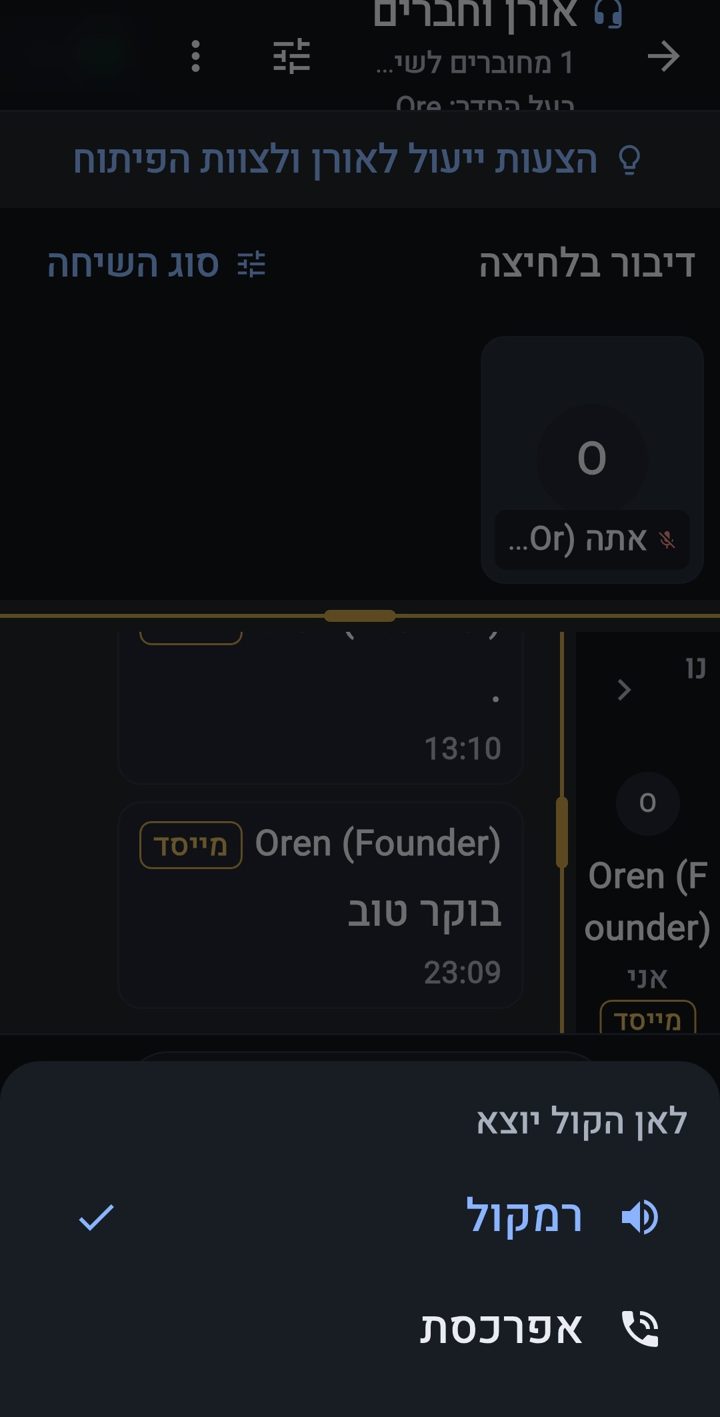
תפריט ״לאן הקול יוצא״ בתחתית מסך החדר: רמקול (מסומן) או אפרכסת · The “Where the sound goes” sheet at the bottom of the room screen: speaker (selected) or earpiece

ביניים · Intermediate

שלושה מצבי שיחהThree ways to talk

עברית
  • שיחה חופשית — כולם מדברים ושומעים במקביל.
  • דיבור בלחיצה — מחזיקים את כפתור המיקרופון הגדול והכתום כדי לדבר, ומשחררים כדי להפסיק.
  • נעילת המיקרופון: לוחצים ומחליקים מעט למעלה, והמיקרופון נשאר פתוח, עם מנעול והמילה ״נעול״. הקשה נוספת משחררת.
  • דיבור לפי תור — מקישים הרמת יד, והתור הממוספר מוצג לכולם בפס מתחת לבמה (ראו ״תור דיבור גלוי״); מי שקיבל רשות דיבור עובר לבמה.
  • בעל החדר בוחר את המצב. כשהוא משתנה, כולם רואים הודעה, התור מתאפס והמיקרופונים מושתקים — כל אחד פותח את שלו בעצמו כשמותר לו לדבר.
English
  • Free talk — everyone talks and hears at the same time.
  • Push to talk — hold the large orange mic button to talk, release it to stop.
  • Locking the mic: press and slide up a little, and the microphone stays open, with a lock and the word “Locked”. Another tap releases it.
  • Speaking queue — tap Raise hand; the numbered queue is shown to everyone in a strip under the stage (see “A visible speaking queue”), and whoever is given the floor moves to the stage.
  • The room owner chooses the mode. When it changes, everyone sees a notice, the queue resets and microphones are muted — each person turns their own mic back on when allowed to speak.
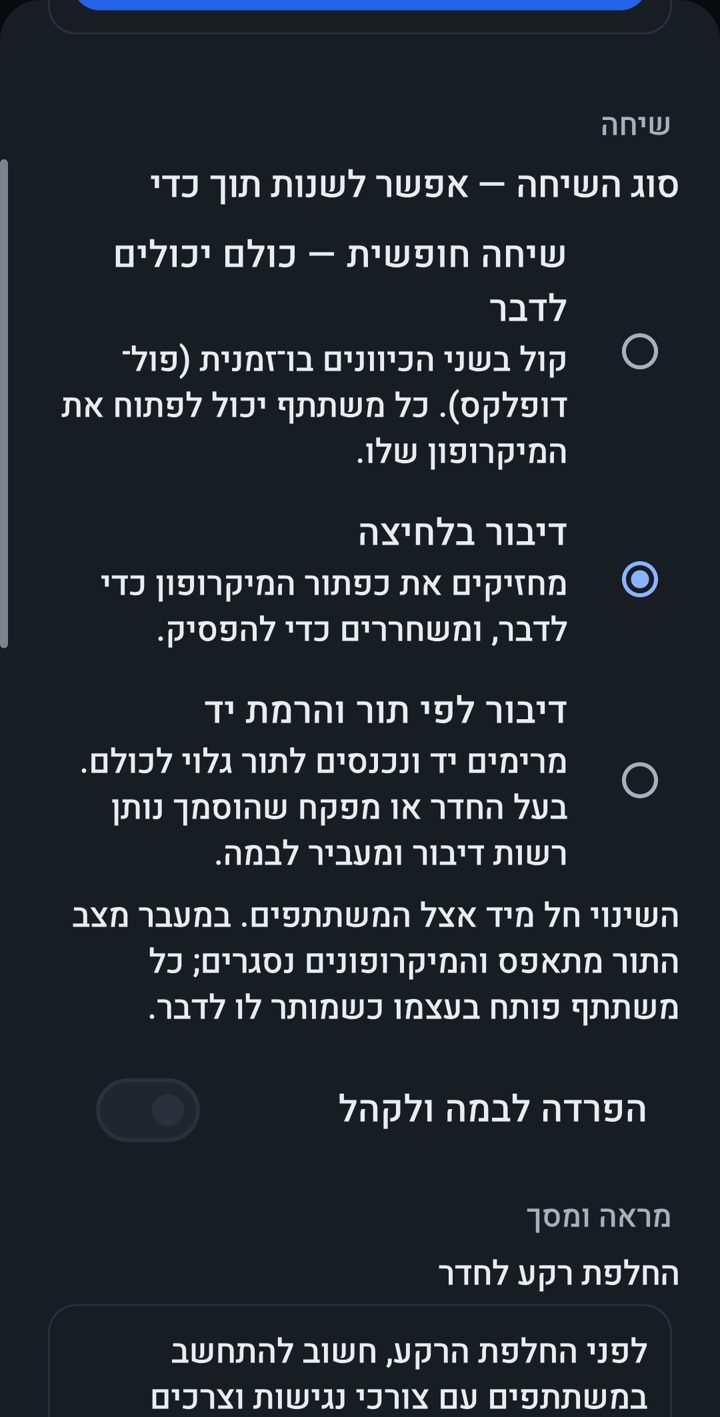
הגדרות החדר: מבנה החדר (מודולרי) ובחירת סוג השיחה — שיחה חופשית, דיבור בלחיצה או דיבור לפי תור והרמת יד · Room settings: the room structure (modular) and the choice of call type — open talk, push-to-talk, or taking turns by raising a hand

ביניים · Intermediate

צ׳אט ותמונות בחדרChat and images in a room

עברית
  • בכל חדר יש צ׳אט. ההודעה החדשה מוצגת ליד תיבת הכתיבה; גוללים למעלה להיסטוריה. קישורים לאתרים חיצוניים בצ׳אט של החדר נפתחים רק אחרי שנבדקו; קישורי OrenChat נפתחים תמיד.
  • כל אחד רואה בחדר רק את ההודעות שנכתבו בזמן שהיה נוכח, מכל הביקורים שלו, בתוך תקופת השמירה של החדר — לא מה שנכתב לפני שהגיע, ולא כשלא היה בחדר. את הביקורים הקודמים פותחים ב״הצגת ההודעות מהביקורים הקודמים שלך״ בראש הצ׳אט. צוות ההנהלה רואה בכניסה גם את השעה האחרונה, לצורך ניהול תקין.
  • מה שכבר ראיתם נשמר אצלכם בטלפון, ונמחק כשמתנתקים מהחשבון.
  • נכנסים ויוצאים: בכל כניסה ויציאה מחדר נכתבת שורה בצ׳אט, וכשחבר צוות שאחראי על החדר נכנס או יוצא — כולם רואים כותרת למעלה ושומעים הכרזה קולית, ובכניסה גם פעמון.
  • הצ׳אט נשמר שבוע: הודעות הצ׳אט בכל חדר נשמרות בשרת שבוע ואז נמחקות (הודעות פרטיות — לא). בעל חדר שצריך יותר מבקש מאורן מתוך ״ניהול החדר״ — חודש, 3 חודשים, חצי שנה או שנה — ואורן מחליט.
  • עריכה: לחיצה ארוכה על הודעה שלכם ← ״ערוך״, בשעה הראשונה בלבד. הודעה שנערכה מסומנת ״נערכה״.
  • מחיקה אוטומטית: לפני השליחה בוחרים אם ההודעה תימחק מעצמה אחרי חצי שעה, שעתיים, יום, יומיים או שבוע. הודעות שנמחקו או נערכו נשמרות בשרת 90 יום לצורכי בטיחות, ואז נמחקות.
  • תמונות — מהגלריה או מהמצלמה, עם צפייה במסך מלא, בחדרים שבהם הן מותרות. לפני השליחה מוסרים מהתמונה נתוני המיקום, המצלמה והזמן (EXIF).
  • סטיקרים — כפתור הסטיקרים בצ׳אט פתוח לכל משתמש, בחדר ובפרטי: שלוש חבילות — ביטויים ישראליים, רגשות, חגים ומועדים — ועוד חבילות נושא מודולריות להתאמה לצרכי המשתמשים.
  • הודעה קולית (עד דקה): כשהתיבה ריקה לוחצים על המיקרופון. בזמן ההקלטה וההאזנה קול החדר מושתק אצלכם. עוד: תיוג עם @ (התראה למי שתויג), חיפוש בזכוכית המגדלת, וכתיבה איטית שמנהלי החדר קובעים.
  • תגובה מהירה: לחיצה ארוכה על הודעה ← שורת אימוג׳ים (👍 ❤️ 😂 😮 😢 🙏 🔥 👏). תגובה אחת לאדם על כל הודעה — הקשה חוזרת מסירה, אימוג׳י אחר מחליף. מתחת להודעה מופיעה הספירה, והקשה עליה מראה מי הגיב.
English
  • Every room has a chat. The newest message appears next to the input box; scroll up for history. Links to external websites in the room’s chat open only after they have been checked; OrenChat links always open.
  • In a room, everyone sees only the messages written while they were present, from all their visits, within the room's retention period — not what was written before they arrived, nor while they were away. Earlier visits open with “Show messages from your earlier visits” at the top of the chat. The management team also sees the last hour when entering, for proper moderation.
  • What you have already seen is kept on your phone and deleted when you sign out.
  • Entering and leaving: Every time someone enters or leaves a room, a line appears in the chat; and when a staff member responsible for the room comes in or leaves, everyone sees a banner at the top and hears a spoken announcement, with a bell when they come in.
  • The chat is kept for a week: chat messages in every room are kept on the server for a week and then deleted (private messages are not). A room owner who needs more asks Oren from “Room controls” — a month, 3 months, half a year or a year — and Oren decides.
  • Editing: long-press your own message → “Edit”, within the first hour only. An edited message is marked “edited”.
  • Automatic deletion: before sending, choose whether the message deletes itself after half an hour, two hours, a day, two days or a week. Deleted or edited messages are kept on the server for 90 days for safety, and are then deleted.
  • Images — from the gallery or the camera, with full-screen viewing, in rooms where images are allowed. Before sending, the location, camera and time data (EXIF) is stripped from the image.
  • Stickers — the stickers button in the chat is open to every user, in rooms and in private: three packs — Israeli sayings, feelings, holidays — plus more modular theme packs tailored to users’ needs.
  • Voice message (up to a minute): with the box empty, tap the microphone. While you record and listen, the room’s sound is muted for you. Also: tagging with @ (the tagged person is notified), search with the magnifying glass, and slow mode set by the room’s managers.
  • Quick reaction: long-press a message → a row of emoji (👍 ❤️ 😂 😮 😢 🙏 🔥 👏). One reaction per person per message — tap again to remove, another emoji switches. The count appears under the message; tap it to see who reacted.
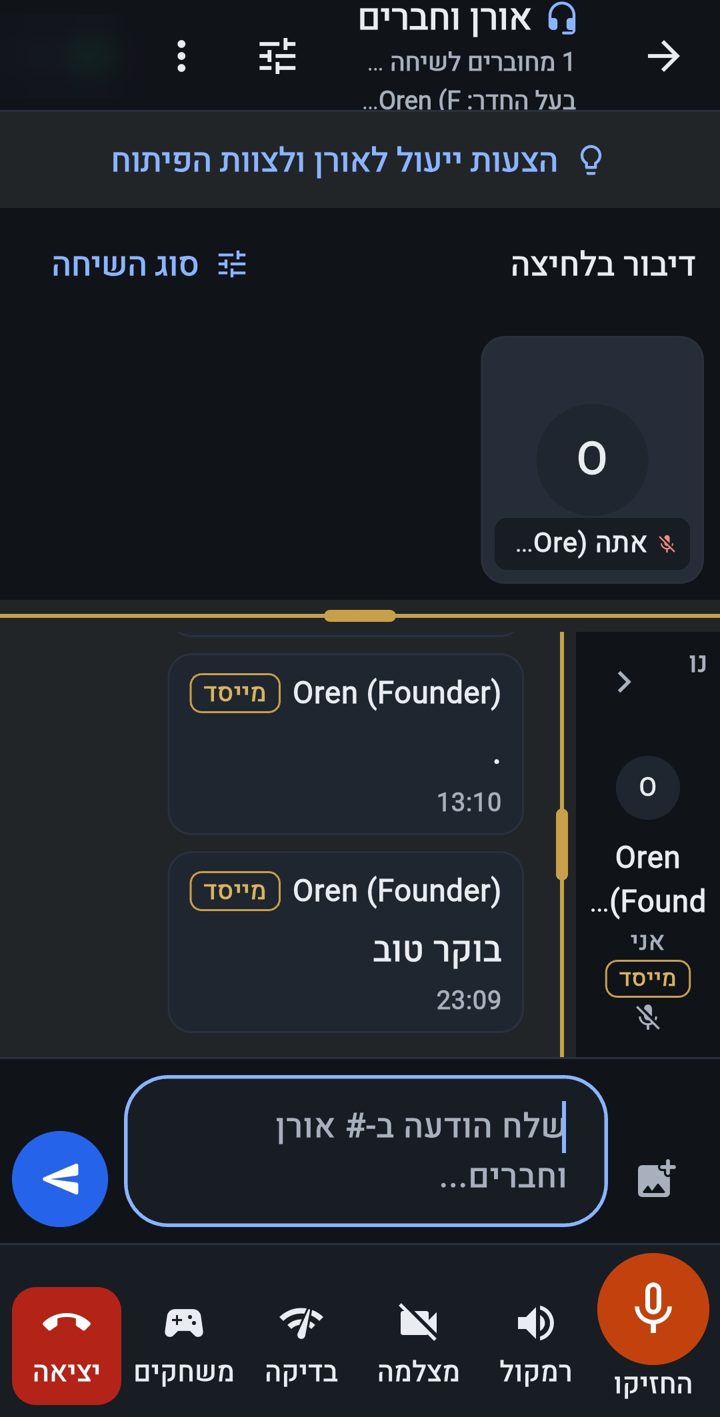
מסך החדר: סוג השיחה למעלה, אריח המשתתף, הצ׳אט ורשימת הנוכחים, ולמטה סרגל השיחה — החזיקו לדיבור, רמקול, מצלמה, בדיקה, משחקים ויציאה · Room screen: the call type at the top, the participant tile, the chat and the presence list, and the call bar at the bottom — hold to talk, speaker, camera, check, games and leave

ביניים · Intermediate

חברים והודעות פרטיותFriends and private messages

עברית
  • בתפריט ⋮ בחרו החברים שלי, או הלשונית ״חברים״ בסרגל התחתון ״חדרים | חברים״ (עם מונה ההודעות החדשות) — או הקישו על שם ברשימת המשתתפים בחדר ← הוספה לחברים.
  • שולחים בקשת חברות; מי שקיבל אותה רואה התראה ומאשר או דוחה מתוכה. לא היה זמין? הבקשות הממתינות קופצות לו בפתיחת האפליקציה הבאה.
  • למי שעדיין לא חבר אפשר לשלוח עד שלוש הודעות היכרות; אחרי אישור החברות — התכתבות חופשית. לאורן, ולבעלי תפקידים שאורן פתח להם תיבת פניות, כותבים חופשי גם בלי חברות.
  • תמונות בפרטי — בין חברים, מהגלריה או מהמצלמה, כמו בחדרים. ״חסימת תמונות מ…״ חוסמת רק תמונות — האדם ממשיך לכתוב ולדבר — ועל תמונה אפשר לדווח. נתוני המיקום (EXIF) מוסרים לפני השליחה.
  • הודעה קולית בפרטי — עד 5 דקות (החלקה למעלה נועלת את ההקלטה), ומכשיר קשר בתוך הצ׳אט הפרטי: מחזיקים ומדברים, גוררים למעלה לנעילה.
  • גם בפרטי אפשר לבחור מחיקה אוטומטית להודעה לפני השליחה.
  • אפשר לחסום, לבטל חסימה ולדווח, בלי שזה משפיע על הפגישה בחדרים. על הודעה פרטית חדשה מגיעה התראה עם שם השולח בלבד, בלי תוכן.
  • גם בפרטי: לחיצה ארוכה על הודעה ← תגובה מהירה באימוג׳י (אחת לאדם; הקשה חוזרת מסירה).
  • מוצאים חברים: ״מצא חברים מאנשי הקשר״ — ההרשאה מתבקשת רק בהקשה, נשלחים רק מספרים מוצפנים להשוואה רגעית, שום מספר לא נשמר ולא מוצג (ב״אבטחה וכניסה לחשבון״: ״לא למצוא אותי לפי מספר הטלפון״). ו״נושאי עניין״ בפרופיל — לפחות 3 נושאים (עד 25) — מראים ״אנשים עם עניין משותף״; אתם קובעים מי רואה את הנושאים.
English
  • In the ⋮ menu, choose My friends, or the “Friends” tab in the bottom bar “Rooms | Friends” (with the new-messages count) — or tap a name in the room’s participant list → Add as friend.
  • Send a friend request; the person sees a notification and accepts or declines right from it. Weren’t they available? The pending requests pop up the next time they open the app.
  • You can send up to three introductory messages to someone who is not yet a friend; once the friendship is accepted, you can write freely. You can write freely, even without a friendship, to Oren and to role holders for whom Oren has opened an inbox.
  • Photos in private — between friends, from the gallery or the camera, like in rooms. “Block photos from…” blocks photos only — the person can still write and talk — and a photo can be reported. Location data (EXIF) is stripped before sending.
  • Voice messages in private — up to 5 minutes (slide up to lock the recording), and a walkie-talkie inside the private chat: hold and talk, drag up to lock.
  • In private too, you can choose automatic deletion for a message before sending it.
  • You can block, unblock and report someone, without affecting meeting them in rooms. A new private message arrives as a notification with the sender’s name only, without the content.
  • In private too: long-press a message → a quick reaction with an emoji (one per person; tap again to remove).
  • Finding friends: “Find friends from your contacts” — the permission is asked only on tap, only encrypted numbers are sent for a momentary comparison, no number is stored or shown (in “Security & sign-in”: “Don’t find me by phone number”). And “Interests” in your profile — at least 3 topics (up to 25) — show “People who share your interests”; you decide who sees your topics.

ביניים · Intermediate

וידאוVideo

עברית
  • כפתור המצלמה פותח וסוגר אותה; כפתור ההחלפה עובר בין המצלמה הקדמית לאחורית.
  • וידאו פועל לפי היתר לחדר, עם מספר מצלמות ומשך זמן. כשהמכסה מלאה מוצגת הודעה. קול וצ׳אט זמינים תמיד.
  • בגרסה החינמית: עד 10 דקות וידאו ביום לכל משתמש (מתחדש בחצות, שעון ישראל), ועד 2 מצלמות בחדר בו־זמנית — 3 כשבעל תפקיד משדר. הווידאו מוגבל אוטומטית כשהעומס עלול לפגוע באיכות הקול, והטלפון משהה לרגע את המצלמה שלו אם הקול נקטע — וחוזר מעצמו. זה ישתנה במעבר למודל עסקי.
  • רוצים לבדוק מצלמה או מיקרופון? ב״חדר בדיקות״ לוחצים על המיקרופון כדי לבדוק את הקול ופותחים את המצלמה. שני אנשים בו־זמנית, 3 דקות לכל אחד (רואים ספירה לאחור), ואפשר לחזור כעבור חצי שעה.
  • לבד בחדר הבדיקות? לוחצים ״בדיקת שמע״, מדברים 20 שניות ושומעים את עצמכם. ההקלטה נשארת רק בטלפון.
  • ב״חדר המייסד״ (תג מוזהב ״חדר פרימיום״) ובשאר חדרי הפרימיום של המייסד כל אחד מדליק מצלמה בלי היתר ובלי המכסה היומית — עד שלוש בו־זמנית; עד 100 משתתפים.
  • הווידאו מעל הצ׳אט או לצדו; גוררים כדי לשנות את הגודל.
English
  • The Camera button turns it on and off; Flip switches between the front and back camera.
  • Video works by room permit, with a number of cameras and a time limit. When the quota is full you see a notice. Voice and chat are always available.
  • In the free version: up to 10 minutes of video a day per user (renewed at midnight, Israel time), and up to 2 cameras per room at the same time — 3 while a role holder is presenting. Video is limited automatically when the load could hurt the voice quality, and your phone pauses its own camera for a moment if your voice is breaking up — and brings it back on its own. This will change when the app moves to a business model.
  • Want to test your camera or microphone? In the ״חדר בדיקות״ (“Test room”) press the microphone to check your sound and open the camera. Two people at a time, 3 minutes each (a countdown shows it), and you can come back half an hour later.
  • Alone in the test room? Tap “Sound check”, talk for 20 seconds and hear yourself. The recording stays on your phone only.
  • In the FOUNDER ROOM (״חדר המייסד״, gold “PREMIUM ROOM” badge) and the founder’s other premium rooms, anyone turns a camera on without a permit and without the daily quota — up to three at the same time; up to 100 participants.
  • Video goes above or beside the chat; drag to change its size.

ביניים · Intermediate

נגישות ותצוגהAccessibility and display

עברית
  • כפתור נגישות צף בכל מסך: הגדלת טקסט, הגדלת כפתורים והדגשתם, ניגודיות מוגברת, הפחתת תנועה וגודל תצוגה.
  • ערכה כהה או בהירה, גודל טקסט בחמישה שלבים וגודל נפרד לטקסט הצ׳אט.
  • הקראה אישית: מפעילים ״בחירה להקראה״ ונוגעים בטקסט או בכפתור כדי לשמוע אותו, בלי להפעיל אותו. ההקראה בקול מקומי במכשיר ואינה משודרת לשיחה.
  • 23 שפות: מאנגלית, ערבית ורוסית ועד יפנית, פרסית, אמהרית ואוקראינית — כל שפה בשם שלה; מחליפים בכל רגע ב״נגישות ותצוגה״ ← ״פריסה ושפה״ ← ״שפה״. בערבית ובפרסית, כמו בעברית, הכול מימין לשמאל. גם ההתראות והודעות המערכת מגיעות בשפה שבחרתם. התרגומים חדשים — טעות? כתבו לנו מהאפליקציה.
English
  • A floating accessibility button on every screen: larger text, larger and emphasised controls, higher contrast, reduced motion and display size.
  • Dark or light theme, text size in five steps, and a separate size for chat text.
  • Read aloud on demand: turn on select-to-read and touch any text or button to hear it, without activating it. Speech uses a voice installed on the device and is never sent into the call.
  • 23 languages: from English, Arabic and Russian to Japanese, Persian, Amharic and Ukrainian — each under its own name; switch at any time in “Accessibility and display” → “Layout and language” → “Language”. In Arabic and Persian, as in Hebrew, everything reads right to left. Notifications and system messages also arrive in the language you chose. The translations are new — spotted a mistake? Tell us from the app.
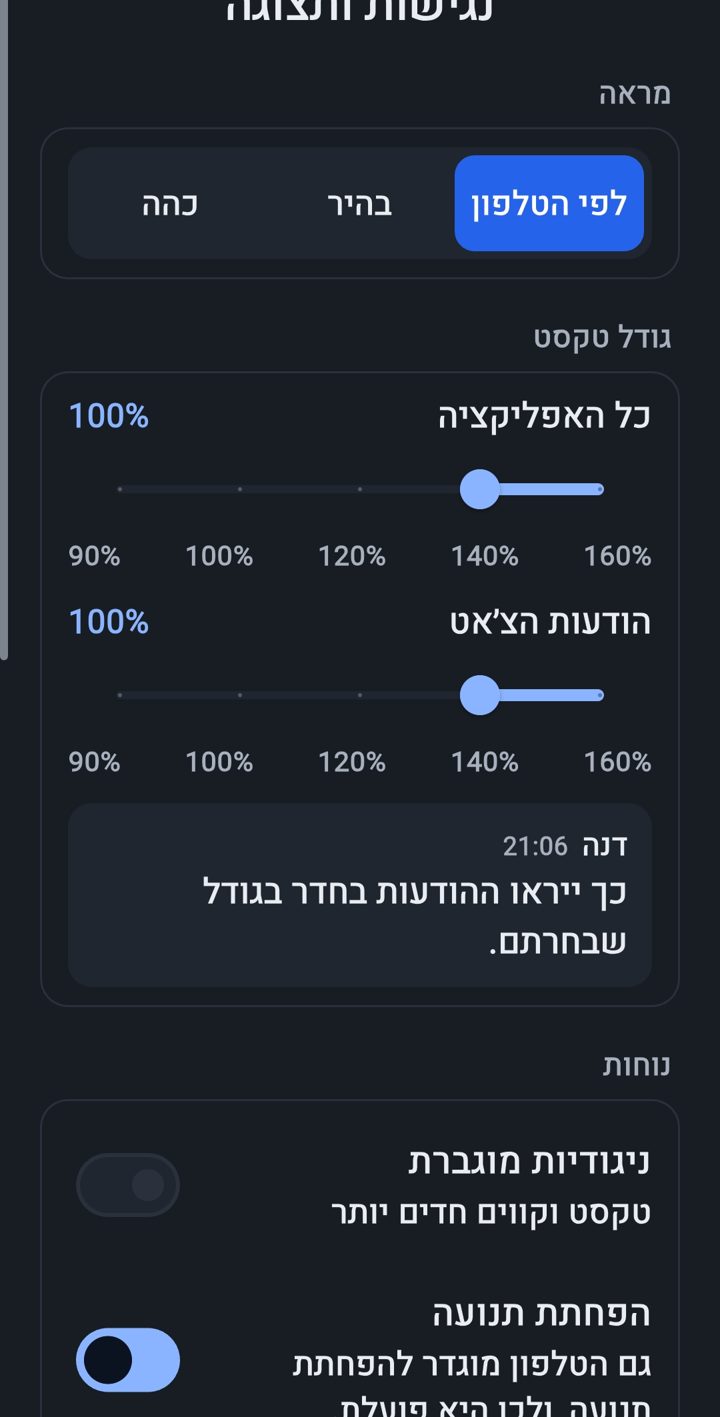
מסך ״נגישות ותצוגה״: מראה לפי הטלפון / בהיר / כהה, גודל טקסט לכל האפליקציה ולהודעות הצ׳אט, וניגודיות מוגברת · The “Accessibility and display” screen: appearance by phone / light / dark, text size for the whole app and for chat messages, and high contrast
הצילומים בערכה הכהה — כך אורן אוהב; כל אחד בוחר לו את ערכת הצבעים הנוחה לו (לפי הטלפון, בהירה או כהה, ועוד ניגודיות מוגברת) ב״נגישות ותצוגה״.The screenshots use the dark scheme — that is what Oren likes; everyone picks the scheme that suits them (by phone, light or dark, plus high contrast) in “Accessibility and display”.

ביניים · Intermediate

התראות, שעות שקט ו״תפוס״Notifications, quiet hours and “Busy”

עברית
  • אשרו את הרשאת ההתראות כשהאפליקציה מבקשת.
  • ״מחובר לחדר…״ — התראה קבועה בזמן שיחה. זו דרישה של אנדרואיד, ובזכותה המיקרופון ממשיך לעבוד כשהמסך כבוי.
  • התראות על החשבון — אישור, תזכורות וכניסה ממכשיר חדש — מגיעות גם כשהאפליקציה סגורה, ומפסיקות אחרי התנתקות.
  • כשהטלפון נעול, ההתראות לא מציגות שמות ופרטים.
  • ההתראות מגיעות בשפה שבחרתם באפליקציה.
  • התראות שאתם בוחרים: חבר שנכנס לחדר, ״קראו לי״, סיכום יומי, הודעות הקהילה, תזכורות לאירועים ונושאים שאתם עוקבים אחריהם — לכל אחת הגדרה משלה ובלם נגד הצפה.
  • שעות שקט — אתם קובעים: בתפריט ⋮ במסך הבית ← ״שעות שקט״ (וגם מ״חברים באוויר — התראות״). מפעילים ובוחרים מאיזו שעה ועד איזו שעה, לפי השעון של הטלפון; ברירת המחדל 23:00–07:00, וגם מעבר לחצות. בשעות האלה לא מגיעות התראות, בלי חריגים — גם לא הודעות קהילה ותזכורות לאירועים — ושום דבר לא נעלם: הודעות ובקשות מחכות לכם באפליקציה.
  • ״קריאות מחברים עדיין יגיעו״ — לבחירתכם: חבר שקורא לכם לחדר או פותח איתכם קשר אישי. תמיד מגיעים: תיוג של השם שלכם בחדר, והתראות אבטחה דחופות על החשבון (כניסה ממכשיר חדש, אימות טלפון).
  • ״אני תפוס״ — לזמן קצר: ליד השם שלכם במסך הבית, או בתפריט ⋮ ← ״אני תפוס״ (מיד אחרי ״שעות שקט״); גם תפריט החדר והפרופיל פותחים אותו. בוחרים לחצי שעה, לשעה, לשעתיים, עד הבוקר (07:00), עד שתכבו בעצמכם או שעת סיום — והסימון יורד מעצמו. בזמן הזה לא מגיעות התראות, בדיוק כמו בשעות השקט. בחדר המיקרופון שלכם נסגר (אפשר לפתוח אותו בכל רגע) וכולם רואים ״תפוס״ ליד השם שלכם; מחוץ לחדר — רק החברים שלכם. בזמן שיחה: ״תפוס לשעה״ ישר מההתראה ״מחובר לחדר…״.
English
  • Allow notifications when the app asks.
  • “Connected to room…” — an ongoing notification during a call. Android requires it, and it keeps the mic working when the screen is off.
  • Account notifications — approval, reminders and sign-in from a new device — arrive even when the app is closed, and stop after you sign out.
  • On a locked phone, notifications do not show names or details.
  • Notifications arrive in the language you chose in the app.
  • Notifications you choose: a friend entering a room, “Call me in”, a daily summary, community announcements, event reminders and topics you follow — each with its own setting and a brake against flooding.
  • Quiet hours — you decide: ⋮ menu on the home screen → “Quiet hours” (also from “Friends live — alerts”). Turn them on and choose from what time to what time, by your phone’s clock; the default is 23:00–07:00, and a range past midnight works too. During those hours no notifications reach you, with no exceptions — not even community announcements or event reminders — and nothing is lost: messages and requests wait for you in the app.
  • “Calls from friends still come through” — if you choose it: a friend calling you into a room or opening your personal link. Always delivered: a tag of your name in a room, and urgent security alerts about your account (a sign-in from a new device, phone verification).
  • “I'm busy” — for a short while: next to your name on the home screen, or ⋮ menu → “I'm busy” (right after “Quiet hours”); the room menu and the profile open it too. Choose for half an hour, for an hour, for two hours, until the morning (07:00), until you turn it off, or an end time — and it ends by itself. During that time no notifications reach you, exactly as in quiet hours. In a room your microphone closes (you can open it again any time) and everyone sees “Busy” next to your name; outside a room, only your friends do. During a call: “Busy for an hour” straight from the “Connected to room…” notification.

ביניים · Intermediate

משחקים — בחדר ובחדר המשחקיםGames — in a room and in the game room

עברית
  • כפתור ״משחקים״ בסרגל השיחה. השיחה ממשיכה בזמן המשחק.
  • 20 משחקים. לשניים: שחמט, דמקה (שלושה סגנונות), שש-בש, איקס-עיגול, ארבע בשורה, רברסי, חמש בשורה, מנקלה, קרב ספינות, מלחמה (קלפים) ודו-קרב טריוויה. לכל החדר: קוביות, טריוויה, חידון מנחה, ארץ עיר, איש תלוי, 20 שאלות ומי אני?. לשולחן: דומינו ויניב. השאר צופים ומייעצים.
  • חידון מנחה — מישהו שואל מהידע שלו, מעניק נקודות בלחיצה ליד שם כל משתתף (תשובה מלאה או חלקית), והסיכום — מי במקום הראשון, השני והשלישי — נכתב לצ׳אט בסוף.
  • בעל החדר או מנהל משחק מתחילים ובוחרים שחקנים; השחקן המוזמן מאשר.
  • הלוח מציע רק מהלכים חוקיים; ברוב המשחקים לכל תור יש זמן מוגבל. בשחמט בוחרים שעון: ללא הגבלה (ברירת המחדל), בליץ (3 דק׳ + 2 שנ׳), מהיר (15 + 10) או קלאסי (90 + 30), לפי FIDE. השרת בודק כל מהלך, מגריל את הקוביות ומחזיק את השעון — אי אפשר לרמות.
  • הלוח נכנס למסך בלי גלילה, בטלפון ובטאבלט, גם בגופן גדול — ולא קופץ כשמישהו מדבר: פס ״באוויר עכשיו״ נשאר בגובה אחד.
  • חדר משחקים: חדר מסוג ״משחקים״ — בלי מצלמה, קול ברקע. בלובי רואים את השולחנות; כל מי שבחדר פותח שולחן (בוחר משחק ומזמין) או מצטרף כצופה. קול לפי שולחן: שומעים רק את מי שמשחק או צופה באותו שולחן. בסוף — ״עוד סיבוב״.
  • הזמנה אליכם בחדר משחקים מופיעה ככרטיס בראש המסך, עם ״אני משחק״ ו״לא עכשיו״. בשולחן — הלוח על כל המסך, והצ׳אט והמשתתפים בכפתור קטן אחד. מי שהזמין רואה ״ממתין לאישור״ ויכול לבטל.
  • ״יציאה מהמשחק״: שחקן באמצע משחק מתבקש לאשר, כי יציאה באמצע היא פרישה והיריב מנצח. בשלב ההזמנה, היציאה דוחה את ההזמנה. צופה רק סוגר את התצוגה. החדר והשיחה נשארים.
English
  • The Games button in the call bar. The conversation goes on while you play.
  • 20 games. For two: chess, checkers (three styles), backgammon, tic-tac-toe, connect four, Reversi, five in a row, Mancala, Battleship, War (cards) and the Trivia duel. For the whole room: dice, Trivia, Host quiz, Eretz Ir (categories), Hangman, 20 Questions and Who am I?. For a table: Dominoes and Yaniv. Everyone else watches and advises.
  • Host quiz — someone asks questions from their own knowledge, gives points with a tap next to each player’s name (a full or a partial answer), and at the end the summary — who came first, second and third — is posted in the chat.
  • The room owner or a game manager starts a game and picks the players; the invited player accepts.
  • The board offers only legal moves; in most games every turn has a time limit. In chess you choose a clock: no limit (the default), Blitz (3 min + 2 s), Rapid (15 + 10) or Classical (90 + 30), by FIDE rules. The server checks every move, rolls the dice and keeps the clock — no cheating possible.
  • The board fits the screen with no scrolling, on phones and tablets, also with a large font — and does not jump when someone talks: the “On air now” bar keeps one height.
  • Game room: a room of the “games” kind — no camera, voice in the background. The lobby shows the tables; anyone in the room opens a table (picks a game and invites) or joins as a spectator. Voice by table: you hear only the people playing or watching at the same table. At the end — “Another round”.
  • An invitation to you in a game room shows as a card at the top of the screen, with “I'll play” and “Not now”. At a table, the board takes the whole screen, and the chat and people are behind one small button. Whoever invited sees “Waiting for … to accept” and can cancel.
  • “Leave the game”: a player in the middle of a game is asked to confirm, because leaving mid-game is a forfeit and the opponent wins. At the invitation stage, leaving declines the invitation. A spectator just closes the view. The room and the call stay.
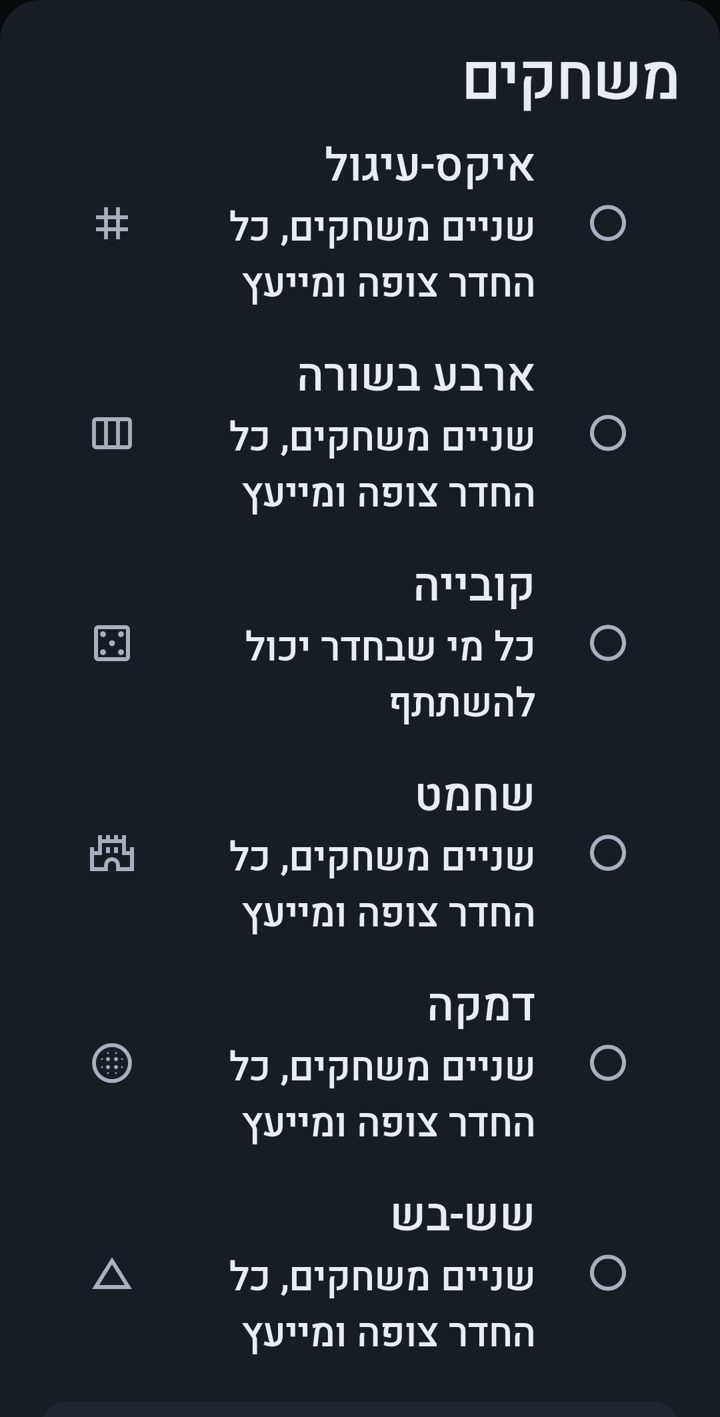
רשימת המשחקים בחדר: איקס-עיגול, ארבע בשורה, קובייה, שחמט, דמקה ושש-בש · The list of games in a room: tic-tac-toe, four in a row, dice, chess, checkers and backgammon

ביניים · Intermediate

דו-קרב טריוויה, 20 שאלות ומי אני?Trivia duel, 20 Questions and Who am I?

עברית
  • לשניים, ומהר: ב״משחקים״ בוחרים ״דו-קרב טריוויה״, 8 או 12 שאלות ונושא — או כל הנושאים — ומזמינים שחקן. כשהוא מאשר, מופיעה השאלה הראשונה.
  • אותה שאלה מופיעה אצל שניכם באותו רגע, ויש 10 שניות לענות. נכונה: 50 עד 100 נקודות — ככל שעונים מהר יותר, מקבלים יותר. שגויה או בלי תשובה: 0, בלי עונש.
  • כששניכם עניתם רואים את התשובה הנכונה, מה כל אחד בחר וכמה קיבל — ועוברים לשאלה הבאה. המשחק כולו — עד דקה וחצי.
  • את הזמן מודד השרת, לא הטלפון. בסוף התוצאה נכתבת בצ׳אט של החדר, למשל: ״דו-קרב טריוויה: דנה 420 – רון 380״.
  • 20 שאלות: מי שפותח הוא היודע — מקליד/ה דבר בסוד ולוחץ/ת ״כן״, ״לא״ או ״לא רלוונטי״ על כל שאלה שנשאלת בקול. מי שחושב שיודע לוחץ ״אני מנחש/ת!״ ואומר בקול, והיודע מכריע. ניצחון: השאלות שנותרו ועוד 5 נקודות, והמנצח הוא היודע בסיבוב הבא.
  • מי אני?: מצטרפים, והמחלק/ת לוחץ/ת ״חלוקה״. כל שחקן רואה את הדמויות של כל שאר השחקנים, שואל בקול וכותב ״אני יודע/ת: …״. ראשון שפותר — 30 נקודות, שני — 20, השאר — 10. גם כאן הסיכום נכתב בצ׳אט.
English
  • For two, and quick: in “Games” choose “Trivia duel”, 8 or 12 questions and a topic — or all topics — and invite a player. Once they accept, the first question appears.
  • The same question appears for both of you at the same moment, with 10 seconds to answer. Right: 50 to 100 points — the faster you answer, the more you get. Wrong or no answer: 0, with no penalty.
  • Once you have both answered you see the right answer, what each of you chose and how many points each got — then on to the next question. The whole game takes at most a minute and a half.
  • The server measures the time, not the phone. At the end the result is written in the room’s chat, for example: “Trivia duel: Dana 420 – Ron 380”.
  • 20 Questions: whoever opens it is the keeper — types something in secret and taps “Yes”, “No” or “Not relevant” for every question asked out loud. Whoever thinks they know taps “I know it!” and says it out loud, and the keeper decides. A win: the questions left plus 5 points, and the winner is the keeper in the next round.
  • Who am I?: join, and the dealer taps “Deal”. Each player sees the characters of all the other players, asks out loud and types “I am…”. First to solve it — 30 points, second — 20, the rest — 10. Here too the summary is posted in the chat.

ביניים · Intermediate

לשונית ״משחקים״ — עולם המשחקים במקום אחדThe “Games” tab — the games world in one place

עברית
  • משחקים עכשיו — לשונית שלישית בתחתית המסך הראשי, ״משחקים״, מראה את חדרי המשחקים הפעילים שאפשר להיכנס אליהם: כמה אנשים בכל חדר ואילו שולחנות פתוחים — איזה משחק וכמה משחקים בו. הקשה נכנסת לחדר. חדרי משחקים ריקים מחכים בקבוצה ״חדרים שקטים״.
  • אירועים קרובים — טורנירים וערבי משחק שמתוכננים בחדרי המשחקים, עם תג המשחק ו״הזכירו לי״. מי שנמצא בחדר יכול ללחוץ באירוע ״הזמן חברים״ ולשלוח לחברים קישור לחדר.
  • מצטיינים — לכל חדר משחקים לוח של 30 הימים האחרונים: שם התצוגה, ניצחונות ומשחקים, והוא מתעדכן פעם ביום. מי שלא רוצה להופיע בוחר ״אל תציגו אותי בלוחות המצטיינים״.
  • פתיחת חדר משחקים — באישור מנהל המשחקים. מי שקיבל אישור רואה בלשונית את הכפתור ״פתח חדר משחקים״.
  • משחקים בחדר רגיל — בעל החדר מחליט: ב״משחקים בחדר הזה״ שבהגדרות החדר אפשר לכבות משחקים בחדר. משחק שכבר רץ אפשר לעצור.
  • פרטיות — בלוח מוצגים רק שם התצוגה, מספר הניצחונות ומספר המשחקים, ורק ממשחקים בחדרי משחקים. אפשר לבחור לא להופיע בלוחות בלשונית ״משחקים״. ממשחקים בחדרים רגילים נשמרים רק נתונים בלי שם החדר, בלי שמות ובלי מזהים של שחקנים.
English
  • Playing now — a third tab at the bottom of the main screen, “Games”, shows the live game rooms you may enter: how many people are in each and which tables are open — which game and how many play it. A tap enters the room. Empty game rooms wait under “Quiet rooms”.
  • Upcoming events — tournaments and game nights planned in the game rooms, with the game's tag and “Remind me”. Whoever is in the room can tap “Invite friends” on an event and send friends a link to the room.
  • Top players — each game room has a board of the last 30 days: display name, wins and games, updated once a day. Whoever doesn't want to appear chooses “Don't show me on the leaderboards”.
  • Opening a game room — with the games manager's approval. Whoever has the approval sees the “Open a game room” button in the tab.
  • Games in a regular room — the room owner decides: “Games in this room” in the room's settings turns games off in the room. A game already running can be stopped.
  • Privacy — a board shows only the display name, the number of wins and the number of games, and only from games in game rooms. You can choose not to appear on the boards, in the “Games” tab. From games in regular rooms we keep only data without the room's name, without names and without player identifiers.

ביניים · Intermediate

בוחרים מה לראות בחדרChoosing what you see in a room

עברית
  • בשורה דקה בראש החדר יש מתגים: וידאו, משתתפים, צ׳אט ומשחק (כשיש משחק). אותם מתגים נמצאים גם בתפריט ⋮.
  • מה שסוגרים נסגר רק אצלכם. הקול ממשיך גם כשהווידאו סגור.
  • גוררים את הקו המפריד: את הווידאו אפשר להקטין עד פס דק, ואת רשימת המשתתפים אפשר להרחיב.
  • כשמתחיל משחק, הווידאו, רשימת המשתתפים והצ׳אט נסגרים מעצמם, והלוח מקבל את המסך. פותחים מחדש כל אחד מהם בשורת המתגים. הצ׳אט נפתח כשכבה מעל החלק התחתון של הלוח.
  • לא רוצים לצפות? מקישים ״משחק״ כדי להסתיר אותו ולחזור לפריסה הרגילה. המשחק ממשיך אצל האחרים.
  • הפריסה נשמרת לכל חדר בטלפון שלכם.
English
  • A thin row at the top of the room has toggles: Video, People, Chat and Game (when there is a game). The same toggles are also in the ⋮ menu.
  • What you close is closed for you only. The sound goes on even with the video closed.
  • Drag the divider: the video can shrink to a thin strip, and the participants list can be made wider.
  • When a game starts, the video, the participants list and the chat close by themselves, and the board gets the screen. Reopen any of them from the row of toggles. The chat opens as a layer over the lower part of the board.
  • Don’t want to watch? Tap Game to hide it and get the normal layout back. The game goes on for the others.
  • The layout is remembered for each room on your phone.

מתקדם · Advanced

״בדיקת שיחה״ — כשמשהו לא נשמע“Call check” — when something can’t be heard

עברית
  • כפתור ״בדיקה״ בסרגל השיחה מראה, לכל משתתף, אם הקול והווידאו שלכם יוצאים אליו ואם שלו מגיעים אליכם.
  • הוא מראה גם אם ממסר השיחות זמין — שרת שמעביר את השיחה כשאין חיבור ישיר בין הטלפונים.
  • אפשר להעתיק את התוצאה ולשלוח לנו.
  • לא שומעים? ודאו שהרשאת המיקרופון מאושרת, ונסו לעבור מרשת סלולרית ל-Wi-Fi או להפך.
English
  • The Check button in the call bar shows, for each participant, whether your voice and video reach them and whether theirs reach you.
  • It also shows whether the call relay is available — a server that carries the call when the phones cannot connect directly.
  • You can copy the result and send it to us.
  • Can’t hear? Make sure the microphone permission is allowed, and try switching from mobile data to Wi-Fi or the other way round.
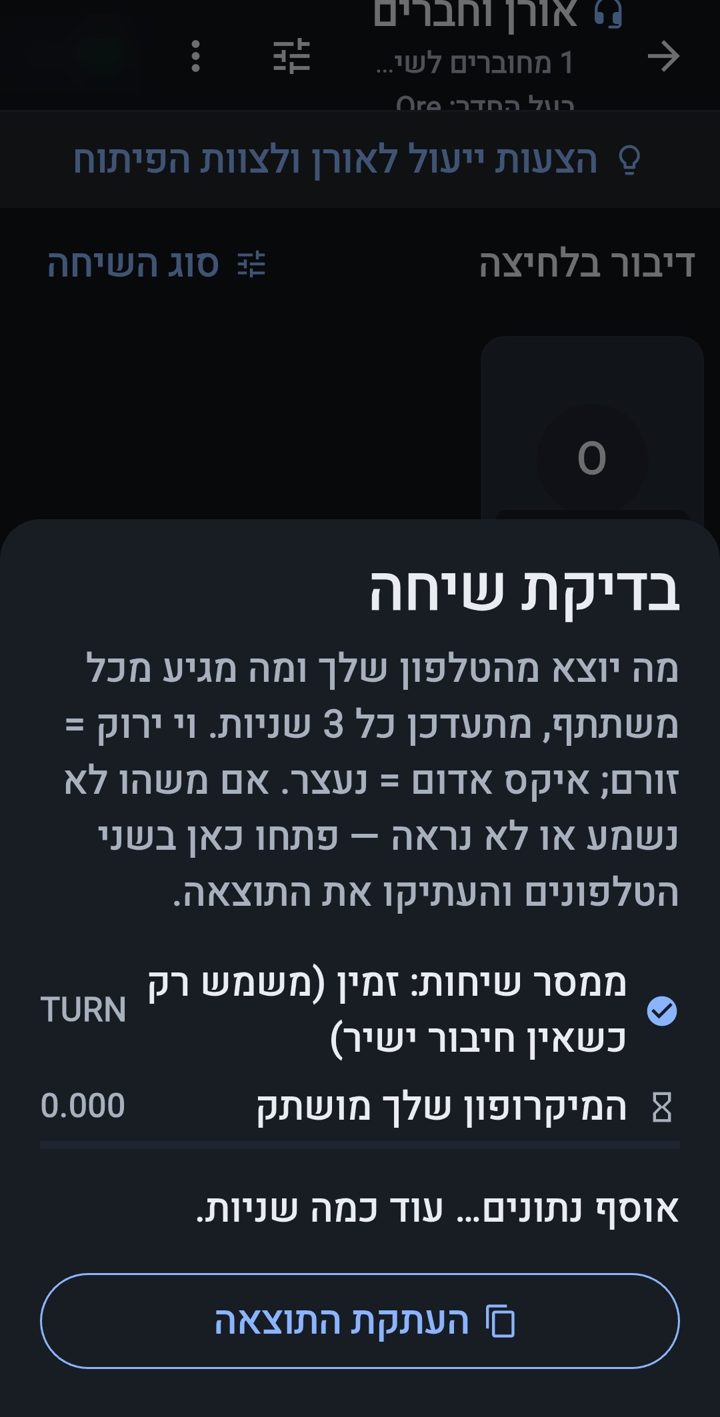
חלון ״בדיקת שיחה״: הסבר קצר, שורת ממסר השיחות (זמין), מצב המיקרופון וכפתור להעתקת התוצאה · The “Call check” sheet: a short explanation, the call relay line (available), the microphone state and a button to copy the result

מתקדם · Advanced

פותחים חדר משלכםOpening your own room

עברית
  • מי שקיבל מכסה פותח חדר ישירות.
  • אחרים שולחים בקשה מנומקת מתפריט ⋮ ← בקשת פתיחת חדר.
  • אפשר להזמין משתמשים לחדר ולקבוע מכסת משתתפים. חדר פרטי פתוח למוזמנים בלבד.
  • מי שפותח חדר הוא בעל החדר, ושמו מופיע בראש החדר.
  • רצועת החדרונים — בתוך חדר שנפתחו בו חדרונים מופיעה רצועת ״חדרונים״: כל חדרון וכמה נמצאים בו (נעול או מלא — מסומן). מקישים על חדרון כדי לעבור אליו. ברשימת החדרים חדרונים לא מופיעים — רק מתוך החדר שבו נפתחו.
  • חדרון — בתוך החדר, ״פתיחת חדרון״ לשיחה צדדית. רק מי שבחדר רואה ונכנס, בתוכו שומעים רק את החדרון, ו״חזרה לחדר״ מחזירה. חדרון ריק נסגר אחרי שתי דקות.
  • ״הזמן חברים״ וקישור לחדר — אחרי שנכנסתם: סמל בראש החדר ושורה ברשימת המשתתפים, כמה חברים בבת אחת (עד 25 בשעה). ״שיתוף קישור לחדר״ בתפריט ⋮: מי שמקיש נכנס ישר לחדר, או מגיע לדף באתר שמסביר איך להתקין. הקישור פג בזמן שבחרתם, ואפשר לבטלו.
  • ממלאי מקום — בניהול החדר ממנים עד שניים, לזמן קצוב (עד 30 יום) או עד ביטול. כשאתם לא בחדר הם מנהלים אותו בשוטף, כולל המתג ״נעילה בפני נכנסים חדשים״ בהגדרות החדר; כשאתם חוזרים — נשארות להם רק סמכויות המפקח שנתתם, ומפקחים שהם מינו פוקעים יחד איתם.
  • שינוי שם החדר — סמל העיפרון ליד החדר: שם חדש (עד 80 תווים) וסיבה, שהיא חובה; המייסד או מנהל הקהילה מאשרים, ואז השם משתנה ואתם מקבלים הודעה.
  • סגירת חדר לצמיתות — קודם מופיעה אזהרה: אין ממנה חזרה — החדר יוסר מהרשימה, ואי אפשר להיכנס אליו או לפתוח אותו מחדש. ״לסגור לצמיתות״ עובד רק אחרי סימון ״אני מבין/ה — רוצה לסגור בכל מקרה״; ״להשאיר את החדר״ מבטל.
English
  • If you were given a room quota, you open a room directly.
  • Otherwise, send a request with a reason from the ⋮ menu → Request a room.
  • You can invite users and set a participant limit. A private room is open to invited people only.
  • Whoever opens the room is its room owner, named at the top of the room.
  • The side rooms strip — inside a room where side rooms were opened, a “Side rooms” strip shows each side room and how many people are in it (locked or full — marked). Tap a side room to move there. Side rooms are not in the room list — only inside the room they were opened in.
  • Side room — inside the room, “Open a side room” for a side conversation. Only people in the room see it and join, inside you hear only the side room, and “Back to the room” returns you. An empty side room closes after two minutes.
  • “Invite friends” and a room link — once you have joined: an icon at the top of the room and a row in the participants list, several friends at once (up to 25 an hour). “Share a room link” in the ⋮ menu: whoever taps it lands straight in the room, or on a page of the site that explains how to install. The link expires after the time you chose, and can be revoked.
  • Deputies — in room management you appoint up to two, for a limited time (up to 30 days) or until revoked. While you are away they run the room day to day, including the “Lock for new arrivals” switch in the room settings; when you return they keep only the moderator powers you gave them, and moderators they appointed expire with them.
  • Renaming the room — the pencil icon next to the room: a new name (up to 80 characters) and a reason, which is required; the founder or the community manager approves, then the name changes and you are told.
  • Closing a room for good — a warning comes first: there is no way back — the room is removed from the list, and nobody can enter it or reopen it. “Close for good” works only after ticking “I understand — close it anyway”; “Keep the room” cancels.

מתקדם · Advanced

הגדרות החדרRoom settings

עברית
  • חדר לפי גיל — מ-20+ ועד 60+, בקפיצות של חמש שנים, ולא מעל הגיל שלכם. מי שמתחת לגיל מקבל הודעה, בלי שגיל של מישהו נחשף.
  • תוכן למבוגרים — חדר שסומן כך מוסתר כברירת מחדל; מי שרוצה לראות מפעיל ״הצגת חדרים למבוגרים״ ומאשר.
  • רקע — 16 רקעים שנבדקו לקריאות. התחשבו במשתתפים עם צורכי נגישות; ניגודיות אישית תמיד גוברת.
  • מודולרי או קשיח — בחדר מודולרי משנים מצב שיחה, במה ופריסה בכל עת; חדר קשיח נשאר במבנה שנקבע לו.
English
  • Age rooms — from 20+ up to 60+, in five-year steps, and not above your own age. Anyone younger gets a notice, and nobody’s age is revealed.
  • Adult content — a room marked this way is hidden by default; people who want to see such rooms turn on “Show adult rooms” and confirm.
  • Background — 16 backgrounds checked for readability. Think of participants with accessibility needs; personal contrast settings always win.
  • Modular or fixed — in a modular room you can change the talk mode, stage and layout at any time; a fixed room keeps the structure it was given.
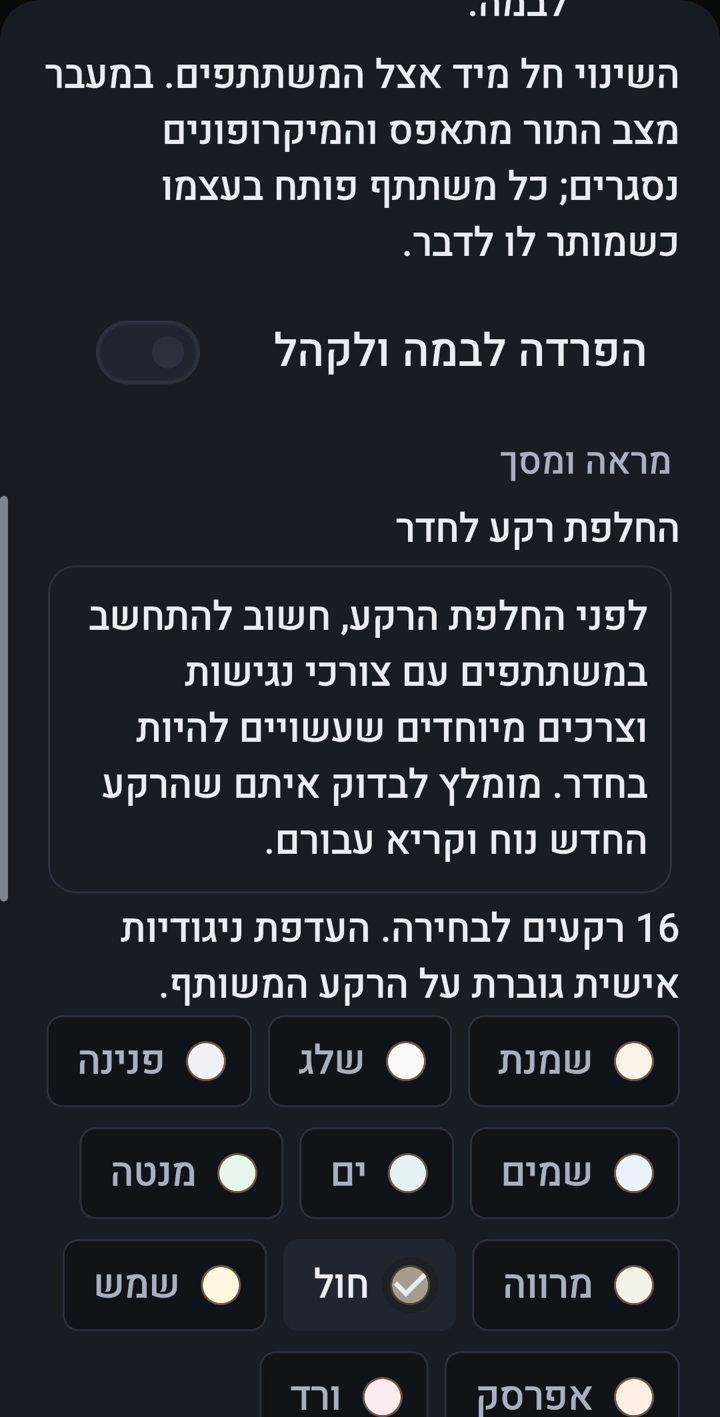
הגדרות החדר: מתג ״הפרדה לבמה ולקהל״, תזכורת להתחשב במשתתפים עם צורכי נגישות, ובחירה מתוך 16 רקעים · Room settings: the “stage and audience separation” switch, a reminder to consider participants with accessibility needs, and a choice of 16 backgrounds

מתקדם · Advanced

שומרים על הסדר בחדרKeeping order in a room

עברית
  • בעל החדר, ממלאי המקום שלו ומי שהוא הסמיך, שומרים על הסדר. מקישים על שם בסרגל הנוכחים כדי לראות את האפשרויות.
  • השתקה שהמשתתף יכול לבטל בעצמו, השתקה מלאה, סגירת מצלמה והרחקה מהחדר במקרה הצורך.
  • חסימה — לזמן מוגבל או לצמיתות: מי שחוסם בוחר. לזמן מוגבל — 10 דקות, 20 דקות, שעה, שעתיים, 5 שעות, יום, שבוע או עד תאריך — והחסימה משתחררת מעצמה. הוצאה מהחדר אינה חסימה: אפשר לחזור.
  • את מי שמוגן, ואת המייסד והסופר אדמינים, מנהלי החדר אינם יכולים להרחיק או להשתיק השתקה מלאה.
  • השתקה רכה אפשרית גם כלפיהם, לכל היותר פעם בשתי דקות: מי ששכח מיקרופון פתוח פותח אותו שוב בעצמו בהקשה אחת.
  • מנהל משחק מנהל רק את סוג המשחק שקיבל, בלי שום סמכות אחרת בחדר.
English
  • The room owner, their deputies and anyone they authorised, keep order. Tap a name in the participants bar to see the options.
  • A mute the participant can undo themselves, a full mute, closing a camera and removing someone from the room when needed.
  • Blocking — for a limited time or permanently: whoever blocks chooses. For a limited time — 10 minutes, 20 minutes, an hour, two hours, 5 hours, a day, a week or until a date — and the block lifts by itself. Removal from the room is not a block: you can come back.
  • Room managers cannot remove or fully mute protected people, the founder or the super admins.
  • A soft mute is possible for them too, at most once every two minutes: whoever forgot an open microphone turns it back on with a single tap.
  • A game manager runs only the game type they were given, with no other authority in the room.

מתקדם · Advanced

דיווח ובטיחותReporting and safety

עברית
  • דיווח פרטי מתוך החדר או מהצ׳אט: בוחרים את סוג הפנייה, מוסיפים הסבר ואפשר לצרף עד שלושה צילומי מסך.
  • הדיווח מגיע לאורן ולמנהל הקהילה; צילומי המסך — לאורן בלבד. מסמנים ״דיווח אנונימי — רק לאורן״ והדיווח מגיע לאורן בלבד. שום דבר לא קורה אוטומטית בלי בדיקה.
  • הגנה ממי שמתנכל: מנגנון בטיחות חכם, בעזרת שירות בינה מלאכותית חיצוני, עוזר לזהות מצבים שבהם מישהו נפגע או מוטרד. המידע הרלוונטי מועבר להנהלה לזמן מוגבל לבדיקה; ניתנת עדיפות לכינויים במקום שמות, וכל עיון נרשם. אורן יכול להסמיך בודק אמין לזמן מוגבל. ההחלטה תמיד של אדם.
English
  • Private reports from the room or the chat: choose the type, add an explanation, and attach up to three screenshots if you like.
  • The report reaches Oren and the community manager; the screenshots reach Oren only. Tick "Anonymous report — to Oren only" and the report reaches Oren alone. Nothing happens automatically without a review.
  • Protection from harassment: a smart safety mechanism, using an external AI service, helps detect situations where someone is hurt or harassed. The relevant information goes to the management for a limited time for review; nicknames are preferred over names, and every access is logged. Oren can appoint a trusted reviewer for a limited time. A person always makes the decision.

מתקדם · Advanced

פרטיות והחשבון שלכםPrivacy and your account

עברית
  • הקול והווידאו עוברים ישירות בין המכשירים של המשתתפים, וכשאין חיבור ישיר — מוצפנים דרך שרת ממסר שאינו יכול לשמוע או לראות.
  • השיחות לא נשמרות באופן קבוע, ואין אפשרות להאזין לשיחות שעברו או להעביר אותן הלאה.
  • השם המלא שלכם נשאר חסוי; בחדר מוצג רק הכינוי.
  • חשבון אחד, מכשיר אחד: מתחברים בטלפון אחר — הקודם מתנתק מיד. כניסה ממכשיר חדש שולחת לכם התראה.
  • מחיקת החשבון — בידיכם: ״אבטחה וכניסה לחשבון״ ← ״מחיקת החשבון״ (אחרי אימות מחדש), או מדף מחיקת חשבון באתר. החשבון נחסם מיד ונמחק סופית אחרי 30 יום; עד אז כניסה מחדש מבטלת. מי שמחק נעלם מרשימות החברים, והודעותיו מוצגות כ״משתמש שנמחק״.
  • לצורכי בטיחות ואכיפה נשמרים פרטי הכניסה — כתובת האינטרנט, ספק האינטרנט, סוג המכשיר וזמן הכניסה. הם נגישים לאורן בלבד, כל צפייה נרשמת, ואינם נמסרים לאף גורם אחר.
  • היסטוריית מיקום: לחשבון שסומן לבדיקת מיקום נשמרות עד 10 דגימות מיקום מרגעי כניסה, ל-30 יום.
  • הודעות צ׳אט בחדרים נשמרות שבוע (או יותר, בחדר שאורן אישר לו הארכה לבקשת בעל החדר); הודעות פרטיות נשמרות, אלא אם השולח קבע להן זמן מחיקה.
  • הספקים בשמם: Google (Firebase ו-Google Cloud) לאחסון, לכניסה ולהתראות; Cloudflare — ממסר לשיחות; SMS4Free — קודי SMS. כל ספק מקבל רק מה שנדרש לו. יומני אבטחה ואכיפה נשמרים שנה אחרי מחיקת חשבון.
  • דיווח תקלות: כשהאפליקציה נתקלת בשגיאה, היא שולחת לשרת תיאור טכני שלה — סוג השגיאה, המקום בקוד שבו קרתה, המסך, וגרסת האפליקציה ומערכת ההפעלה — כדי שנוכל לתקן אותה. שום דבר שכתבת או שראית לא נשלח. הדיווחים נשמרים בלי פרטים מזהים, 30 יום, ורק צוות הפיתוח רואה אותם.
English
  • Voice and video travel directly between the participants’ devices; when there is no direct connection, they pass encrypted through a relay server that cannot hear or see them.
  • Calls are not stored permanently, and there is no way to listen to past calls or pass them on.
  • Your full name stays private; rooms show only your nickname.
  • One account, one device: sign in on another phone and the previous one is signed out at once. A sign-in from a new device sends you a notification.
  • Deleting your account — in your hands: “Security & sign-in” → “Delete my account” (after verifying again), or from the Delete account page on the site. The account is blocked at once and deleted for good after 30 days; until then, signing in again cancels it. Whoever deleted disappears from friends lists, and their messages show as “Deleted user”.
  • For safety and enforcement, the sign-in details are kept — the internet address, the internet provider, the kind of device and the time of the sign-in. They are accessible to Oren alone, every look is recorded, and they are never passed on to anyone else.
  • Location history: for an account marked for a location check, up to 10 location readings taken at sign-in moments are kept for 30 days.
  • Room chat messages are kept for a week (or longer, in a room Oren granted an extension at its owner's request); private messages are kept unless the sender set a deletion time.
  • The providers by name: Google (Firebase and Google Cloud) for storage, sign-in and notifications; Cloudflare — a relay for calls; SMS4Free — SMS codes. Each gets only what it needs. Security and enforcement logs are kept for a year after an account is deleted.
  • Error reports: when the app runs into an error, it sends the server a technical description of it — the type of error, where in the code it happened, the screen, and the app and operating-system versions — so we can fix it. Nothing you wrote or saw is sent. Reports are kept without identifying details, for 30 days, and only the development team sees them.

ביניים · Intermediate

מכשיר קשר: כמה מדברים בבת אחתWalkie-talkie: several people talk at once

עברית
  • היתרון הגדול: בחדר של דיבור בלחיצה כמה אנשים לוחצים ומדברים בו־זמנית — לא מחכים שהדובר יסיים וירד מהמיקרופון. החיווי ״באוויר עכשיו״ מראה את כל מי שמדבר.
  • בתפריט ⋮ במסך הבית (או בתפריט החדר) ← מכשיר קשר בוחרים כפתורי דיבור: כפתור האוזניות (חוטיות או בלוטות׳, גם עם מסך כבוי; פועל מההתחלה), החזקת כפתור החלשת העוצמה (כשמפעילים), וכפתור צף מעל אפליקציות אחרות (כשמפעילים) — אנדרואיד יבקש לאשר ״הצגה מעל אפליקציות אחרות״. ההגדרות נשמרות בטלפון הזה בלבד.
  • הלחצן הצף: מתחתיו כתוב ״אל:״ ולמי מדברים עכשיו — החדר או החבר בקשר אישי. נגיעה כפולה פותחת ״למי מדברים?״ — החדר ועד 5 קשרים אישיים אחרונים; בוחרים ועוברים. הלחצן נעוץ במקומו: להזזה — לחיצה ארוכה (רטט) ואז גרירה, וכך גם לסגירה — למטה אל ה-X; ״כפתור צף״ בהתראה מחזיר אותו.
  • 🔋 חוסכים בסוללה: עוברים ללחצן הצף ומשאירים את האפליקציה ברקע עם מסך כבוי — החדר ממשיך להישמע ומדברים בלחצן הצף.
  • בהתראה הקבועה של השיחה: ״לדבר״ (בשיחה חופשית — ״פתיחת מיקרופון״ / ״השתקה״) ו״עזיבת החדר״. החדר ממשיך להישמע גם כשהמסך כבוי.
  • מחובר לחדר — בכל מסך — עברתם למסך אחר באמצע שיחה בחדר? סרגל קטן בתחתית המסך מראה לאיזה חדר אתם מחוברים ומי מדבר עכשיו, ולחיצה מחזירה אתכם לחדר.
  • צלילי קשר — בחדר של דיבור בלחיצה: צפצוף קצר מיד כשלוחצים על כפתור הדיבור וכשמשחררים — מכל כפתור: במסך, באוזניות, בכפתור העוצמה, בלחצן הצף ובהתראה — וגם כשמישהו אחר מתחיל או מסיים לשדר; רק אתם שומעים, ואפשר לכבות ב״צלילי קשר״.
  • ״מה פספסתי״ בשורת ״באוויר עכשיו״ שמעל סרגל השיחה — עד 5 הדקות האחרונות ששמעתם בחדר, עם סרגל גרירה ושמות מי שדיבר; בזמן ההאזנה החדר החי מושתק אצלכם. בזיכרון הטלפון בלבד, ונמחק מיד בסיום ההאזנה או כשיוצאים מהחדר.
  • ״הוצאת מיקרופון״: מכל שיחה, גם בלי להפעיל כאן את הכפתור הצף — בשקופית הבאה.
English
  • The big advantage: in a push-to-talk room several people press and talk at the same time — no waiting for the speaker to finish and get off the mic. The “On air now” indicator shows everyone who is talking.
  • In the ⋮ menu on the home screen (or the room menu) → Walkie-talkie, choose your talk buttons: the headset button (wired or Bluetooth, even with the screen off; on from the start), holding volume-down (when turned on), and a floating button over other apps (when turned on) — Android asks you to allow “display over other apps”. The settings are saved on this phone only.
  • The floating button: under it, “To:” and who you are talking to right now — the room or the friend on a personal link. A double tap opens “Who to talk to?” — the room and up to 5 recent personal links; pick one to switch. The button stays put: to move it — long-press (a tick) and drag, and the same to close it — down to the X; “Floating button” in the notification brings it back.
  • 🔋 Save battery: switch to the floating button and leave the app in the background with the screen off — the room keeps playing and you talk with the floating button.
  • In the call’s persistent notification: “Talk” (in open talk — “Unmute” / “Mute”) and “Leave room”. The room keeps playing even with the screen off.
  • Connected to a room — on every screen — Moved to another screen in the middle of a room call? A small bar at the bottom of the screen shows which room you are connected to and who is speaking now, and a tap takes you back to the room.
  • Radio chirps — in a push-to-talk room: a short chirp right when you press the talk button and when you release it — from every button: on the screen, the headset, the volume key, the floating button and the notification — and also when someone else starts or stops transmitting; only you hear it, and you can turn it off with “Radio sounds”.
  • “What did I miss” in the “On air now” row above the call bar — up to the last 5 minutes you heard in the room, with a scrub bar and the names of who spoke; while you listen, the live room is muted for you. In the phone’s memory only, and erased right after listening or when you leave the room.
  • “Pull out mic”: from any call, even without turning on the floating button here — on the next slide.

ביניים · Intermediate

הוצאת מיקרופוןPull out mic

עברית
  • בכל שיחה — בחדר, בחדרון ובקשר אישי — מקישים בסרגל השיחה ״הוצאת מיקרופון״.
  • האפליקציה יורדת לרקע, והשיחה ממשיכה להישמע — גם באפליקציה אחרת וגם כשהמסך כבוי.
  • לוחצים ומחזיקים את הלחצן הצף כדי לדבר, ומשחררים כדי להקשיב. החלקה מהירה למעלה נועלת את הדיבור ואפשר לעזוב; נגיעה אחת משחררת, והנעילה משתחררת לבד אחרי 2 דקות. מתחתיו כתוב ״אל:״ ושם השיחה; הקשה על התווית מחזירה לשיחה.
  • בחדר של דיבור חופשי רק המיקרופון שלכם עובר ללחיצה — לכל השאר החדר נשאר בדיבור חופשי.
  • מסיימים ב״החזרת המיקרופון״ בסרגל השיחה, או גוררים את הלחצן הצף (לחיצה ארוכה ואז גרירה) אל ה-X. גם יציאה מהשיחה מסיימת.
  • בפעם הראשונה אנדרואיד מבקש לאשר ״הצגה מעל אפליקציות אחרות״, ואז המיקרופון יוצא מעצמו. לא צריך להפעיל קודם את הכפתור הצף בהגדרות ״מכשיר קשר״.
English
  • In every call — a room, a side room or a personal link — tap “Pull out mic” in the call bar.
  • The app goes to the background, and the call keeps playing — in another app and with the screen off too.
  • Press and hold the floating button to talk, and release it to listen. A quick slide up locks the talk so you can let go; one tap releases it, and the lock releases by itself after 2 minutes. Under it, “To:” and the name of the conversation; tapping the label takes you back to the call.
  • In an open-talk room only your own microphone becomes press-to-talk — for everyone else the room stays in open talk.
  • End it with “Return mic” in the call bar, or drag the floating button (long-press, then drag) to the X. Leaving the call ends it too.
  • The first time, Android asks you to allow “Display over other apps”, and then the microphone goes out by itself. You don’t need to turn on the floating button in the “Walkie-talkie” settings first.

ביניים · Intermediate

קשר אישי: מכשיר קשר בין שני חבריםPersonal link: a walkie-talkie between two friends

עברית
  • רק בין חברים (בקשת חברות שאושרה). סמל האנטנה ״קשר אישי״ ליד החבר ב״החברים שלי״ או בראש הצ׳אט הפרטי — או הקשה על שמו ברשימת המשתתפים בחדר ← ״קשר אישי״. מקישים ״בקשת קשר אישי״, והחבר מאשר פעם אחת.
  • מאז כל אחד מכם פותח את הקשר בהקשה אחת (״פתיחת הקשר״, או מ״למי מדברים?״ בנגיעה כפולה על הלחצן הצף) ונשמע אצל השני מיד — גם כשהמסך שלו כבוי.
  • שניכם מדברים בבת אחת — לוחצים ומדברים באותו רגע, כמו בשיחה אמיתית, ולא כמו ב-Zello.
  • האפליקציה של החבר ברקע או סגורה? הוא מקבל התראה ״X פתח/ה איתך קשר״ ומצטרף בהקשה אחת; עד אז השורה אצלכם אומרת ״עוד לא בקשר — נשלחה התראה״.
  • רואים אם החבר שומע: שורה מתחת לכפתור הדיבור — ״X מחובר/ת ושומע/ת אותך״, ״עוד לא בקשר״, ״מתחבר״, ״מנסה שוב דרך שרת ממסר״ או ״הקול כאן מושתק״. ״מדברים — X שומע/ת״ מופיע רק כשהחבר באמת מחובר; אין הרשאת מיקרופון — הודעה עם ״תיקון״.
  • לא נקטע: תזוזה קטנה של האצבע לא עוצרת את הדיבור; החלקה למעלה נועלת, נגיעה משחררת. רק שיחת טלפון רגילה משתיקה את הקשר — וואטסאפ, הודעה קולית או אפליקציה אחרת שתופסת את השמע לרגע לא.
  • שיחה אחת בכל פעם: מי שנמצא בחדר ופותח קשר אישי מתבקש לאשר, כי הקשר מוציא אותו מהחדר. מתחת ללחצן הצף כתוב ״אל: קשר אישי״ ושם החבר.
  • פרטיות: אף אחד אחר לא נכנס, והקשר לא מופיע ב״מי באוויר״. חסימה, או ״ביטול הקשר האישי״ באותו מקום שבו פותחים אותו, סוגרים אותו מיד לשניכם; פתיחה מחדש — בקשה ואישור חדשים.
English
  • Only between friends (an approved friend request). The antenna icon “Personal link” next to the friend in “My friends” or at the top of the private chat — or tap their name in a room’s participant list → “Personal link”. Tap “Ask for a personal link”, and the friend approves once.
  • From then on either of you opens the link with one tap (“Open the link”, or from “Who to talk to?” with a double tap on the floating button) and is heard by the other at once — even with their screen off.
  • You both talk at once — press and talk at the same moment, like a real conversation, and unlike Zello.
  • Is the friend’s app in the background or closed? They get a notification “X opened a link with you” and join with one tap; until then your line says “isn’t in the link yet — they were notified”.
  • You see whether your friend hears you: a line under the talk button — “X is connected and hears you”, “isn’t in the link yet”, “Connecting”, “Retrying through a relay server” or “The sound here is muted”. “Talking — X hears you” appears only when the friend is really connected; no microphone permission — a message with “Fix”.
  • Not cut off: a small finger movement does not stop the talk; a slide up locks, a tap releases. Only a regular phone call mutes the link — WhatsApp, a voice message or another app that grabs the audio for a moment does not.
  • One call at a time: if you are in a room and open a personal link, you are asked to confirm, because the link takes you out of the room. Under the floating button it says “To: Personal link” and the friend’s name.
  • Privacy: nobody else gets in, and the link never appears in “Who’s on air”. A block, or “Revoke the personal link” in the same place you open it, closes it at once for both of you; opening it again needs a new request and approval.

ביניים · Intermediate

״מי באוויר״ והחברים“Who’s on air” and friends

עברית
  • בראש מסך הבית — ״מי באוויר״: באילו חדרים מדברים עכשיו, כמה בפנים ומי מהחברים שלכם. ״הצטרפות״ ואתם בחדר.
  • התראה כשחבר נכנס לחדר — בכל פעם, פעם בשעה לכל חבר (מומלץ, וכך מוגדר מראש) או כבוי; מכל החברים או רק ממי שבחרתם. גם ב״בכל פעם״: לכל היותר אחת על אותו חבר בכל 10 דקות, ועד 12 בשעה.
  • ״קראו לי״ — בתפריט החדר ״הזמן חברים״; החבר מצטרף בהקשה אחת מההתראה.
  • סיכום יומי — כבוי עד שתבחרו בו; בשעה שתבחרו: אילו חדרים פעילים וכמה אנשים בהם — בכל החדרים שמותר לכם להיכנס אליהם, או רק בחדרים עם חברים.
  • הכול ב״חברים באוויר״ (בתפריט ⋮ במסך הבית: ״חברים באוויר — התראות״). לא רוצים שיֵדעו? כבו ״הודיעו לחברים שלי כשאני נכנס/ת לחדר״ — אין התראה עליכם, ואתם לא מופיעים ב״מי באוויר״ ובסיכום של החברים (בתוך החדר רואים אתכם כרגיל). רק חברים, רק חדרים שמותר לכם להיכנס אליהם, ושעות השקט שלכם חלות גם כאן (״להגדרת שעות השקט״).
English
  • At the top of the home screen — “Who’s on air”: which rooms people are talking in now, how many are inside and which of your friends. Tap “Join” and you are in.
  • A notification when a friend enters a room — every time, once an hour per friend (recommended, and the default) or off; from all friends or only those you chose. Even with “every time”: at most one about the same friend every 10 minutes, and up to 12 an hour.
  • “Call me in” — “Invite friends” in the room menu; the friend joins with one tap from the notification.
  • Daily summary — off until you choose it; at a time you choose: which rooms are active and how many people are in them — in all the rooms you may enter, or only in rooms with friends.
  • It is all in “Friends live” (in the ⋮ menu on the home screen: “Friends live — alerts”). Don’t want them to know? Turn off “Tell my friends when I enter a room” — no notification about you, and you don’t appear in “Who’s on air” or in your friends’ summary (inside the room you are seen as usual). Friends only, only rooms you may enter, and your quiet hours apply here too (“Set your quiet hours”).

ביניים · Intermediate

הודעות קהילה וכינוסיםCommunity announcements and gatherings

עברית
  • מנהל הקהילה שולח הודעה לקהילה לכל חבריה — עד 3 ביום, ובמרווח של שעתיים לפחות. הודעה נוספת יוצאת רק באישור המייסד.
  • כינוס — מנהל הקהילה מזמין את כל הקהילה לחדר, עכשיו או בשעה שבחר (עד שבועיים מראש); כל חבר מקבל פוש שפותח את החדר. כינוס בחדר פרטי — נכנסים מעט לפני הכינוס ועד שהוא נגמר.
  • בתפריט ⋮ במסך הבית (למי ששייך לקהילה) — ״הודעות הקהילה״: כל ההודעות והכינוסים במקום אחד. אפשר לכבות את הפושים של קהילה מסוימת, ובשעות השקט שלכם הם לא מגיעים — ובשני המקרים ההודעות נשמרות שם.
English
  • The community manager sends a message to the community to all its members — up to 3 a day, at least two hours apart. A further one goes out only with the founder’s approval.
  • A gathering — the community manager invites the whole community to a room, now or at a time they chose (up to two weeks ahead); every member gets a push that opens the room. A gathering in a private room — you can enter shortly before it and until it ends.
  • In the ⋮ menu on the home screen (for members of a community) — “Community announcements”: all the announcements and gatherings in one place. You can turn off one community’s pushes, and in your quiet hours they don’t come at all — either way the announcements are still kept there.

ביניים · Intermediate

במה, אירועים ונושאיםStage, events and topics

עברית
  • במה וקהל: בקהל המיקרופון סגור. לוחצים ״הרמת יד לבמה״, ובעל החדר מעלה אתכם לבמה ומחזיר לקהל. מי שהרים יד נכנס לתור הדיבור הגלוי — בשקופית הבאה.
  • אירועים מתוכננים: הכרטיס ״אירועים קרובים״ במסך הבית פותח את ״אירועים ונושאים״. שם בעל חדר מתכנן אירוע (״תכנון אירוע״: נושא, יום, שעה, אורך), ושם לוחצים ״הזכירו לי״ — פוש כרבע שעה לפני ובתחילת האירוע, לא בשעות השקט. אירוע בחדר ציבורי: ״שיתוף בוואטסאפ״ שולח הזמנה עם קישור להורדה. אירוע שבוטל — מי שביקש תזכורת מקבל הודעה.
  • 12 נושאים לעקוב אחריהם — מקשר ורדיו ועד שיחה חברתית, ב״נושאים שאני עוקב/ת אחריהם״. פוש כשחדר ציבורי בנושא מתחיל: לכל היותר 3 ביום, בהפרש של שעתיים, ולא בשעות השקט. בעל חדר משייך לחדר שלו עד 3 נושאים (תחת ״החדרים שלי״).
  • ״הרצאות שהשתתפתי״: רשימת ההרצאות שהשתתפתם בהן ב-30 הימים האחרונים, ולכל הרצאה סיכום כתוב למאזין — כותרת ההרצאה, שם המרצה, תאריך ומשך, זמן ההשתתפות האישי שלכם, סדר היום, שאלות שנענו בכתב ותוצאות סקרים שהמרצה חשף — לצד מתן משוב והורדת ההקלטה ב-24 השעות הראשונות.
English
  • Stage and audience: in the audience your microphone is closed. Tap “Raise a hand to the stage”, and the room owner brings you up to the stage and back to the audience. Whoever raises a hand joins the visible speaking queue — on the next slide.
  • Scheduled events: the “Upcoming events” card on the home screen opens “Events and topics”. There a room owner schedules an event (“Schedule an event”: topic, day, time, length), and there you tap “Remind me” — a push about a quarter of an hour before and at the start, never in quiet hours. An event in a public room: “Share on WhatsApp” sends an invitation with a download link. When an event is cancelled, whoever asked for a reminder is told.
  • 12 topics to follow — from Radio and PTT to Social chat, in “Topics I follow”. A push when a public room of the topic starts: at most 3 a day, two hours apart, never in quiet hours. A room owner gives their room up to 3 topics (under “My rooms”).
  • “Lectures I attended”: a list of the lectures you attended in the last 30 days, and for each lecture a written summary for the listener — the lecture title, the lecturer’s name, the date and length, your own attendance time, the agenda, questions answered in writing and poll results the lecturer revealed — along with giving feedback and downloading the recording in the first 24 hours.

ביניים · Intermediate

תור דיבור גלויA visible speaking queue

עברית
  • בחדר עם במה או עם דיבור לפי תור, פס קבוע מתחת לבמה מראה את התור: לכל אחד עיגול זהב עם המספר שלו והשם בהדגשה. הקשה על הפס פותחת את הרשימה המלאה.
  • הרמתם יד? רואים ״את/ה מספר N בתור״ וכמה ממתינים לפניכם, והשם שלכם בולט בפס וברשימה.
  • התראות: ״את/ה הבא/ה בתור!״ (רטט וצליל קצר) כשמגיעים לראש התור, ו״תורך לדבר — המיקרופון פתוח״ כשעולים לדבר — כל אחת פעם אחת.
  • מנהל הבמה: ״הבא בתור״ בהקשה אחת (כשכמה על הבמה — בוחרים מי יורד), חצים לשינוי הסדר, ״הוצאה מהתור״ ו״ניקוי התור״.
  • זמן דיבור לבחירה: 1, 2, 3 או 5 דקות, או ״ללא הגבלה״, עם שעון שכולם רואים; בסוף הזמן הבא עולה אוטומטית, או שיש תזכורת בלבד — לפי מה שהמנהל בחר.
  • הסדר והזמן נאכפים בשרת — אף אחד לא מקדים את עצמו ולא מאריך לעצמו את הזמן.
English
  • In a room with a stage or with taking turns, a strip that stays under the stage shows the queue: a gold circle with each person’s number and their name in bold. Tap the strip to open the full list.
  • Raised your hand? You see “You are number N in the queue” and how many are ahead of you, and your name stands out in the strip and the list.
  • Alerts: “You're next!” (a vibration and a short sound) when you reach the front, and “Your turn — the microphone is open” when you go up to speak — each one once.
  • The stage manager: “Next in queue” with one tap (with several people on the stage, you choose who steps down), arrows to change the order, “Remove from the queue” and “Clear the queue”.
  • An optional speaking time: 1, 2, 3 or 5 minutes, or “No limit”, with a clock everyone sees; when the time is up the next person goes up automatically, or there is just a reminder — as the manager chose.
  • The order and the time are enforced on the server — nobody can move themselves up or lengthen their own time.

ביניים · Intermediate

אולם ההרצאות: במה, מצגת וכלים בשידור חיThe lecture hall: stage, slides and live tools

עברית
  • חדר ייעודי להרצאות חיות: הכרטיס שלו מופיע במסך הראשי, עם ״הזכירו לי״ לפני הפתיחה, ובפנים — עיצוב ומבנה משלו — המרצה מוביל את ההרצאה (מרצה אחד על הבמה) ומדבר אל קהל גדול, עם אזור תצוגה מרכזי רחב בטלפון ובמחשב.
  • הרצאות וחדרים נראים עכשיו כמו בזום: הבמה או הווידאו על כל המסך, הכפתורים בסרגל דק למטה, והצ׳אט, השאלות והסקרים במרחק החלקה אחת — מרכז המסך נשאר פנוי לתוכן גם בטלפון קטן.
  • הרמת יד מהקהל או לבמה: מי שבקהל מרים יד ונכנס לתור הגלוי; המרצה בוחר אם לפתוח לו מיקרופון מהקהל או להעלות אותו לבמה.
  • מצגת, סרטון, יוטיוב, שיתוף מסך ואתר בתיבה מבודדת: מצגת מדופדפת עם הערות דובר למרצה בלבד וחומרים לקהל (שמוגשים מראש, ונבדקים ומאושרים לפני ההרצאה), סרטון או YouTube שמנוגנים בסנכרון אצל כולם, שיתוף חי של מסך המרצה, והצגת אתר בתיבה מאובטחת ומבודדת.
  • לוח ציור וכתיבה: המרצה מצייר ומסביר על לוח חי, ויכול להזמין משתתף אחד מהקהל לצייר יחד איתו לזמן קצוב.
  • שאלות בכתב, סקרים, טריוויה ותגובות: שאלות בכתב תוך כדי ההרצאה — בשם או כ״אנונימי״, בלי שם השואל מול הקהל; סקרים מהירים (בחירה, כן/לא או דירוג 1–5) וטריוויה עם טבלת מובילים שהמרצה חושף כשמתאים לו; מחיאות כפיים ותגובות מהירות, וכפתור ״לא שומעים״.
English
  • A dedicated room for live lectures: its card is on the home screen, with “Remind me” before it opens, and inside — its own design and layout — the lecturer leads the lecture (one lecturer on stage) and speaks to a large audience, with a wide main display area on phone and desktop.
  • Lectures and rooms now look like Zoom: the stage or the video fills the whole screen, the buttons sit in a thin bar at the bottom, and the chat, questions and polls are one swipe away — the middle of the screen stays free for the content, even on a small phone.
  • Raising a hand — from the audience or to the stage: audience members raise a hand and join the visible queue; the lecturer chooses whether to open their microphone from the audience or bring them up to the stage.
  • Slides, video, YouTube, screen share and a website in an isolated box: a slide deck with speaker notes for the lecturer alone and materials for the audience (submitted in advance, and checked and approved before the lecture), a video or YouTube played in sync for everyone, live sharing of the lecturer’s screen, and showing a website in an isolated secure box.
  • Drawing and writing board: the lecturer draws and explains on a live board, and can invite one participant from the audience to draw with them for a limited time.
  • Written questions, polls, trivia and reactions: written questions during the lecture — by name or as “Anonymous”, without the asker’s name shown to the audience; quick polls (multiple choice, yes/no or a 1–5 rating) and trivia with a leaderboard the lecturer reveals when ready; applause and quick reactions, and a “Can’t hear” button.

ביניים · Intermediate

אולם ההרצאות: חדרונים, סיכום ולוח האירועיםThe lecture hall: breakout rooms, summary and the events board

עברית
  • חדרונים, סדר יום, הפסקה ומוזיקת המתנה: חלוקה לחדרוני עבודה קוליים לקבוצות (אקראית או לפי בחירת המרצה), שהמרצה עובר ומבקר ביניהם ובסיום כולם חוזרים לאולם; סדר יום עם טיימר; מסך הפסקה ומסך המתנה עם מוזיקת המתנה; שיתוף קישור או קובץ לכולם; ושקט מהודעות פרטיות למרצה בזמן ההרצאה.
  • סיכום ומשוב אחרי ההרצאה: בסיום ההרצאה החומרים זמינים בקישור ל-24 שעות, והצ׳אט והשאלות נשמרים ל-30 יום כדי שהמרצה יוכל לענות בכתב על שאלות שלא נענו. המשתתפים יכולים להשאיר משוב עם דירוג והערה למרצה, והמרצה מקבל סיכום של ההרצאה: כמה השתתפו, כמה זמן נשארו ואילו שאלות עוד מחכות לתשובה.
  • הרצאות בלוח האירועים: הרצאה מתוכננת מופיעה בלוח האירועים ככרטיס הזמנה עם ״הזכירו לי״, ותזכורת מגיעה לפני הפתיחה.
English
  • Breakout rooms, agenda, break screen and waiting music: splitting the audience into voice breakout rooms for groups (randomly or chosen by the lecturer), where the lecturer visits each room and everyone returns to the hall at the end; an agenda with a timer; a break screen and a waiting screen with waiting music; sharing a link or a file with everyone; and quiet from private messages for the lecturer during the lecture.
  • Summary and feedback after the lecture: when the lecture ends, the materials are available by link for 24 hours, and the chat and questions are kept for 30 days so the lecturer can answer remaining questions in writing. Participants can leave feedback with a rating and a note for the lecturer, and the lecturer receives a summary of the lecture: how many attended, how long they stayed and which questions are still waiting for an answer.
  • Lectures on the events board: a planned lecture appears on the events board as an invitation card with “Remind me”, and a reminder arrives before it starts.

ביניים · Intermediate

יחס אישי ופרימיום ל-35 הראשוניםA personal touch and premium for the first 35

עברית
  • הודעת פתיחה מאורן — מי שעוד לא שמע אותה (חדשים וגם ותיקים) מקבל פעם אחת כרטיס ״ברוכים הבאים״ עם כפתור השמעה; אפשר לשמוע שוב בתפריט ⋮: ״הודעת הפתיחה מאורן״.
  • ״יש לי בקשה״ — כותבים לאורן (אפשר עם צילום מסך), וב״הבקשות שלי״ רואים את מצב הפנייה — התקבלה, בבדיקה, בטיפול, במעקב, מתוכנן או טופלה — ואת התשובה. על כל תשובה ועל כל שינוי במצב מגיעה התראה, וקופץ חלון ״תגובה מהמייסד״: סוגרים, בוחרים תשובה מוכנה או כותבים תשובה, באותה שיחה.
  • ״התאמה אישית״ (בתפריט ⋮) — גודל כתב, צבעים וניגודיות, עוצמת צלילי האפליקציה (לא משנה את קול השיחה) ו״מצב פשוט״ — רק הפריטים היומיומיים בתפריטים, בלי שדבר נמחק. ההגדרות עוברות איתכם לכל טלפון.
  • חגיגת יום הולדת בחדר — ביום ההולדת שלכם, בכל כניסה לחדר או להרצאה כולם רואים אנימציה קצרה של קונפטי ובלונים עם מנגינת יום הולדת מקורית קצרה והשורה ״היום יום ההולדת של …״. מוצג רק היום — לעולם לא השנה ולא הגיל. אפשר לכבות זאת בפרופיל (״להציג את יום ההולדת שלי״), ומי שנמצא בחדר יכול להשתיק חגיגות באותו חדר (״להשתיק חגיגות בחדר הזה״).
  • תג פרימיום ל-35 הראשונים — המקום נקבע לפי פעילות אמיתית של יותר מעשרה ימים, שאלגוריתם חכם בודק. עד סיום הפיילוט, 60 יום בלי כניסה מעבירים את המקום הלאה (תזכורת בפוש אחרי 45); חשבון שנמחק או נחסם לצמיתות מוותר עליו מיד. בסיום הפיילוט המקומות קפואים, ושנת הפרימיום נספרת ממנו. התג ״פרימיום״ מופיע ליד השם. כמה מקומות נשארו — באתר הבית.
  • ״חבר מביא חבר״ — לכל אחד קוד הזמנה אישי בפרופיל, להעתקה או לשליחה בוואטסאפ. על כל 3 חברים שהצטרפו עם הקוד ונעשו פעילים — חודש פרימיום, שיוענק אחרי תקופת הפיילוט. חבר נחשב פעיל אחרי אימות טלפון ו-10 ימים מתוך 30 עם פעילות אמיתית — דיבור בחדר קולי, כתיבה בחדרים או הודעות פרטיות; כניסה לחדר לבד לא נספרת. בפרופיל רואים את החברים שהבאתם לפי שם התצוגה — לכל אחד אם נרשם, פעיל או נספר לחודש — וכמה חודשים הרווחתם.
  • זהב לחברי פרימיום לכל החיים — חברי פרימיום לכל החיים מסומנים בזהב: מסגרת מוזהבת סביב השם, והשם עצמו בזהב — בחדרים, בצ׳אט, ברשימת החברים ובפרופיל.
English
  • A welcome message from Oren — whoever has not heard it yet (new members and existing ones) gets, once, a “Welcome” card with a play button; listen again in the ⋮ menu: “Oren's welcome message”.
  • “I have a request” — write to Oren (a screenshot is welcome), and in “My requests” see where it stands — received, under review, in progress, being tracked, planned or resolved — and the answer. Every answer and every status change brings a notification and a “Reply from the founder” window: close it, pick a ready reply or write your own, in the same conversation.
  • “Personalize” (in the ⋮ menu) — text size, colours and contrast, the app’s sound effects volume (the call audio is not changed) and “Simple mode” — only the everyday items in the menus, with nothing removed. The settings follow you to every phone.
  • Birthday celebration in a room — on your birthday, every time you enter a room or a lecture everyone sees a short confetti and balloons animation with a short original happy-birthday tune and the line “Today is …’s birthday”. Only the day is shown — never the year or the age. You can turn it off in your profile (“Show my birthday”), and anyone in the room can mute celebrations for that room (“Mute celebrations in this room”).
  • A premium badge for the first 35 — the place is decided by real activity on more than ten days, checked by a smart algorithm. Until the pilot ends, 60 days without a visit pass the place on (a push reminder after 45); an account deleted or banned for good gives it up at once. When the pilot ends the places are frozen, and the year of premium counts from then. The “Premium” badge shows next to the name. How many places are left — on the home site.
  • “Bring a friend” — everyone has a personal invitation code in the profile, to copy or send on WhatsApp. For every 3 friends who join with the code and become active — a month of premium, given after the pilot period. A friend counts as active after verifying a phone and 10 days out of 30 with real activity — talking in a voice room, writing in rooms or private messages; just entering a room does not count. The profile shows the friends you brought by display name — for each, whether they registered, are active or were counted toward a month — and how many months you earned.
  • Gold for lifetime premium members — lifetime premium members are marked in gold: a golden frame around the name, and the name itself in gold — in rooms, in the chat, in the friends list and on the profile.

ביניים · Intermediate

״חדר המייסד״ וחדרי הפרימיוםFOUNDER ROOM and the premium rooms

עברית
  • החדר של אורן נקרא ״חדר המייסד״ (באנגלית FOUNDER ROOM), ולצדו תג מוזהב ״חדר פרימיום״.
  • כל חדר חדש שהמייסד פותח הוא חדר פרימיום: עד 100 משתתפים, וכל אחד מדליק מצלמה בלי היתר ובלי המכסה היומית — עד 3 בבת אחת; הרביעי מחכה שמישהו יכבה.
  • את המשתתפים בחדר פרימיום מנהלים רק המייסד והמפקחים שמינה בו.
English
  • Oren’s room is called FOUNDER ROOM (in Hebrew ״חדר המייסד״), with a gold “PREMIUM ROOM” badge next to it.
  • Every new room the founder opens is a premium room: up to 100 participants, and anyone turns a camera on without a permit and without the daily quota — up to 3 at once; a fourth waits for someone to turn theirs off.
  • In a premium room, only the founder and the moderators he appointed in it manage the participants.

מתקדם · Advanced

עדכוני גרסהVersion updates

עברית
  • האפליקציה בודקת בכל הפעלה, בכל חזרה מרקע ואחת לשעה אם יצאה גרסה חדשה באתר.
  • כשיש גרסה חדשה, האפליקציה מפסיקה לעבוד עד שמתקינים אותה — כדי שכולם בחדר יהיו על אותה גרסה.
  • הכפתור במסך העדכון מוריד ישירות את הגרסה החדשה, רק מאתר הבית של OrenChat. מתקינים מעל הגרסה הקיימת, והחשבון נשמר.
  • אין אינטרנט? האפליקציה ממשיכה לעבוד ומציגה הודעה קטנה עם קישור לאתר.
  • מה חדש בכל גרסה — באתר, ב״מה השתנה בין גרסה לגרסה״.
  • תוכנית הבטא: רוצים לקבל גרסאות חדשות לפני כולם? בתפריט ⋮ במסך הבית ← ״גרסאות בטא״ ← ״בקשה להצטרף לגרסאות בטא״. לפני שהבקשה נשלחת, האפליקציה מסבירה מה זה אומר: גרסאות בטא עלולות להכיל באגים, ומתבקשים לכתוב ביקורות והצעות, רצוי עם צילומי מסך. אחרי ״מצטרף/ת״ הבקשה נשלחת לאורן, שמאשר. מאז כל גרסת בטא מגיעה אליכם לפני כולם כעדכון חובה, כמו כל עדכון, ובמסך ״גרסאות בטא״ שולחים לאורן ״ביקורת בטא״ עם עד 3 צילומי מסך. מתי הגרסה יוצאת לכולם — אורן מחליט.
English
  • The app checks for a new version on the site at every launch, every return from the background, and once an hour.
  • When there is a new version, the app stops working until you install it — so everyone in a room is on the same version.
  • The button on the update screen downloads the new version directly, only from the OrenChat home site. Install it over the current one; your account is kept.
  • No internet? The app keeps working and shows a small notice with a link to the site.
  • What changed in each version is listed on the site, in the changelog.
  • Beta programme: want new versions before everyone else? ⋮ menu on the home screen → “Beta versions” → “Ask to join the beta”. Before the request is sent, the app explains what it means: beta versions may contain bugs, and you are asked to write reviews and suggestions, preferably with screenshots. After “Count me in” the request goes to Oren, who approves it. From then on every beta version reaches you before everyone else as a mandatory update, like any update, and in the “Beta versions” screen you send Oren a “Beta review” with up to 3 screenshots. When a version goes out to everyone is Oren's decision.

החזון · Vision

החזון ומה בדרךVision and what’s coming

עברית
  • הקול קודם: שיחה צלולה ויציבה; בדיבור בלחיצה כמה אנשים מדברים בבת אחת, בלי לחכות שהמיקרופון יתפנה.
  • יחס אישי ונגישות: כל פנייה נקראת ומקבלת תשובה מאורן, והאפליקציה מתאימה את עצמה לכל משתמש.
  • פרטיות: רק משתמשים מאושרים, הקול עובר ישירות בין המכשירים, והשרתים באזור ישראל של Google Cloud.
  • הוגנות: הבסיס נשאר חינמי; 35 הראשונים שמתמידים באפליקציה — לפי פעילות אמיתית של יותר מעשרה ימים, שאלגוריתם חכם בודק — יקבלו תג פרימיום לשנה, שנספרת מסיום הפיילוט.
  • פתוחה לכל אדם, עם קו אדום: מותר לדבר על הכול, גם על פוליטיקה — בכבוד; על אנטישמיות, הכחשת השואה או של ה-7 באוקטובר ושלילת זכות היהודים על מדינתם — מסלקים מהאפליקציה.
  • 23 שפות — כבר עכשיו: האפליקציה, האתר והמדריך בעברית ועוד 22 שפות — מאנגלית, ערבית ורוסית ועד יפנית, פרסית ואמהרית, ומגרסה 1.42 גם אוקראינית. הבית — קודם כול קהילה ישראלית חזקה.
  • חדש ב-1.41–1.42: אולם ההרצאות להרצאות חיות לקהל גדול, חדרים והרצאות בסגנון זום שמשאירים את מרכז המסך לתוכן, חגיגת יום הולדת בחדר, תשובות מהמייסד בחלון קופץ עם מצב הפנייה, כניסה בטביעת אצבע גם למי שנכנס עם גוגל, אוקראינית — השפה ה-23, וההתראות והודעות המערכת בשפה שלכם — הפרטים באתר, ב״הגרסה הנוכחית״.
  • כבר יצא ב-1.35–1.40: לשונית ״משחקים״ עם אירועים ולוח מצטיינים, חידון מנחה, דו-קרב טריוויה, ״20 שאלות״ ו״מי אני?״, הצ׳אט בחדר מכל הביקורים שלכם, הכרזות כניסה ויציאה, סרגל ״מחובר לחדר״ בכל מסך, קישור הזמנה לקהילה, ״חבר מביא חבר״, דף הסרטונים, השפות, האמנה בכל השפות, התראות בשפה שלכם והקראה שמזהה גם פרסית, יפנית, קוריאנית, סינית ואמהרית, מכשיר קשר שבו כמה מדברים בבת אחת, ״מי באוויר״, הודעות הקהילה, במה ואירועים, תור דיבור גלוי, ״הוצאת מיקרופון״, שעות שקט ו״אני תפוס״, נושאי עניין, ״מצא חברים מאנשי הקשר״, חדרונים, ״הזמן חברים״ וקישור לחדר, חדר משחקים ועשרה משחקים חדשים, תמונות גם בפרטי, סטיקרים לכולם, קשר אישי שאומר אם החבר שומע, חסימות לזמן מוגבל ומחיקת חשבון בידיכם — ראו את השקופיות הקודמות.
  • מה בדרך: לחצני קשר ייעודיים ומצב רכב, עוצמה לכל דובר ומצב רשת חלשה, תרגום הודעות בהסכמה, ״אני בסדר״ וקריאת מצוקה, קבוצה שלמה בקישור אחד, הקלטת חדרים (בקרוב, אחרי בדיקה משפטית), ובהמשך מנוי פרימיום, גרסת מחשב, Google Play ושפות נוספות.
English
  • Voice first: clear, stable conversation; in push-to-talk several people talk at the same time, with no waiting for the microphone to free up.
  • Personal attention and accessibility: every request is read and answered by Oren, and the app adapts itself to each user.
  • Privacy: only approved users, voice travels directly between devices, and the servers are in the Israel region of Google Cloud.
  • Fairness: the basics stay free; the first 35 people who stick with the app — based on real activity on more than ten days, checked by a smart algorithm — will get a premium badge for a year, counted from the end of the pilot.
  • Open to everyone, with a red line: you may talk about anything, politics included — respectfully; antisemitism, denying the Holocaust or 7 October, and denying the Jewish people’s right to their state lead to removal from the app.
  • 23 languages — here now: the app, the site and the guide are in Hebrew and 22 more languages — from English, Arabic and Russian to Japanese, Persian and Amharic, and since version 1.42 Ukrainian too. Home is, first of all, a strong Israeli community.
  • New in 1.41–1.42: the lecture hall for live lectures to a large audience, Zoom-style rooms and lectures that keep the middle of the screen for the content, a birthday celebration in the room, replies from the founder in a pop-up window with the request’s status, fingerprint sign-in for Google sign-ins too, Ukrainian — the 23rd language, and notifications and system messages in your language — the details are on the site, in “The current version”.
  • Already out in 1.35–1.40: the “Games” tab with events and a top-players board, Host quiz, Trivia duel, “20 Questions” and “Who am I?”, room chat from all your visits, entry and exit announcements, the “connected to a room” bar on every screen, a community invitation link, “Bring a friend”, the Videos page, the languages, the charter in every language, notifications in your language and read-aloud that also recognises Persian, Japanese, Korean, Chinese and Amharic, a walkie-talkie where several people talk at once, “Who’s on air”, community announcements, stage and events, a visible speaking queue, “Pull out mic”, quiet hours and “I'm busy”, interests, “Find friends from your contacts”, side rooms, “Invite friends” and room links, a game room and ten new games, photos in private too, stickers for everyone, a personal link that tells you whether your friend hears you, time-limited blocks and account deletion in your own hands — see the previous slides.
  • What’s coming: dedicated push-to-talk buttons and a car mode, a volume for each speaker and a weak-network mode, translation of messages with consent, “I’m OK” and a distress call, a whole group by one link, room recordings (coming soon, after a legal review), and later a premium subscription, a desktop version, Google Play and more languages.

עזרה · Help

עזרה, משוב ויצירת קשרHelp, feedback and contact

עברית
  • כפתור ״הצעות ותקלות לצוות הפיתוח״ — במסך הראשי ובתוך החדר. הוא מצרף את מספר הגרסה ופרטי המכשיר, ואת התשובה רואים באותה פנייה.
  • שאלונים קצרים מופיעים מדי פעם; ההשתתפות רשות.
  • ״אודות״ — הפריט האחרון בתפריט ⋮ במסך הבית פותח את אתר הבית של OrenChat, בשפה של האפליקציה.
  • במייל: [email protected] — על כל דבר, גם לפני ההתקנה.
  • 📱 +972-53-3713187
  • צריכים התאמת נגישות שאינה קיימת? ספרו לאורן מה יעזור לכם.

OrenChat נבנתה על ידי אורן אדלשטיין ורונן, יחד עם הקהילה.

לאתר הבית
English
  • The Suggestions and bug reports button — on the home screen and inside rooms. It attaches your version and device details, and you see the reply in the same request.
  • Short surveys appear from time to time; taking part is optional.
  • “About” — the last item in the ⋮ menu on the home screen opens the OrenChat home site, in the app’s language.
  • By email: [email protected] — about anything, even before installing.
  • 📱 +972-53-3713187
  • Need an accessibility adjustment that doesn’t exist yet? Tell Oren what would help.

OrenChat was built by Oren Edelshtein and Ronen, together with the community.

Home site

התאמות תצוגה · Display

ההתאמות משותפות עם אתר הבית ונשמרות בדפדפן זה בלבד.
Shared with the home site and saved in this browser only.